
Custom content in Paralives, in one minute
CC in Paralives means player-made objects, clothing and more, built with the game's own mod editor and shared on the Steam Workshop — no third-party loaders, and no paywall in front of the official channel.
- Custom content is official-tool content: Paralives ships a built-in mod editor, and the developers themselves say "mods and CC" when they point players at the Workshop.
- Finding CC is one click: subscribe on the Steam Workshop and the objects appear in your catalogue next to the official ones.
- Files shared outside the Workshop install into the mod folder the game creates for you — meshes (fbx, obj) and textures (png, jpg) are what land there.
- Making an object takes free tools only: model it in Blender, export FBX, then wire it up in the game's editor under Items, prefab and tag.
- The tag is the make-or-break step: an untagged item is invisible in catalogue search — the number-one cause of "my CC is not showing up".
- There is no scripting: the official tools add content, not code, so script mods remain unconfirmed as of 0.1.9b.
Start here
What Paralives CC is — and where it lives
In The Sims, custom content is a third-party scene. In Paralives it is a first-party feature: the game ships Modding Tools, the Steam Workshop is the official channel, and the studio's own announcements call Workshop uploads "mods and CC". Two steps show both ends of that pipeline.
- 1
See where CC lives: the Steam Workshop
This is a finished custom content page: Mailbox Pack CC, three player-made mailboxes with their own screenshots, description and Subscribe button. Subscribing installs it automatically — the same flow as any Workshop item, as our download-houses guide shows. The developers highlighted this exact channel in June 2026, counting 13,000 uploaded items of "free mods and CC".
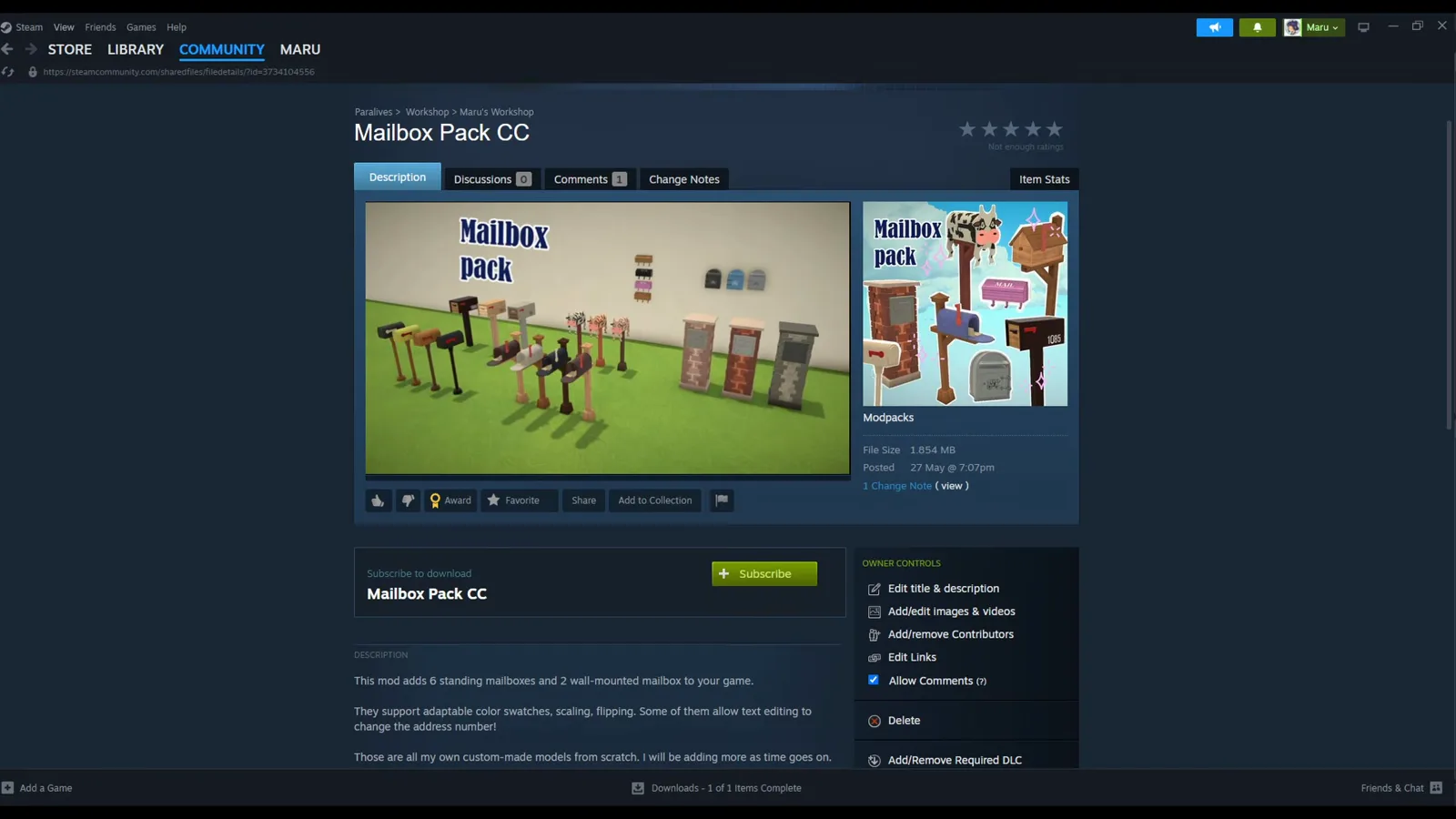
Finished CC ships as a Workshop page like this — subscribe and it lands in your catalogue.Watch at 15:35 - 2
What a custom object does in game
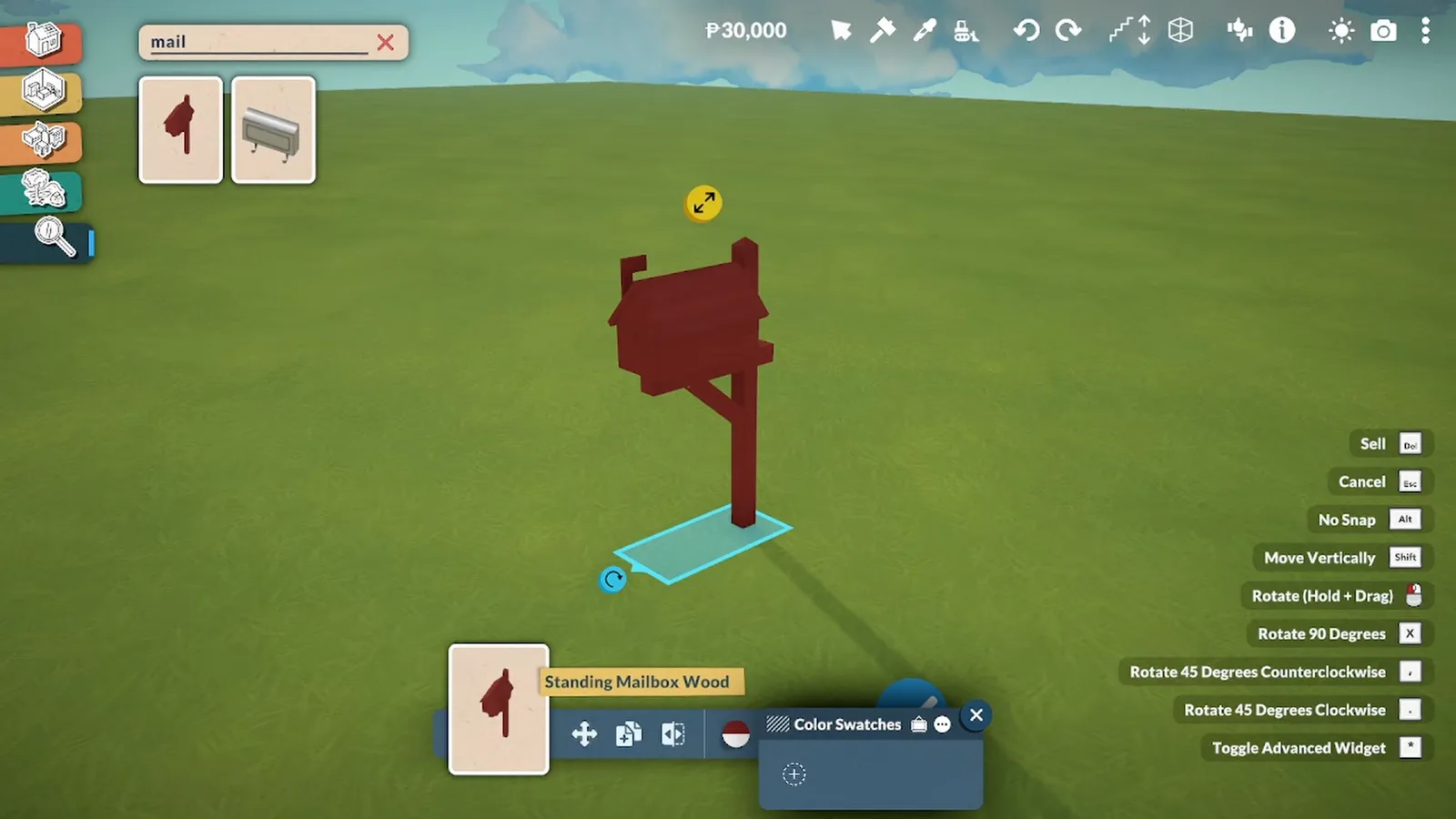
Once installed, a creator-made mailbox behaves like an official one: it snaps to the ground, opens its context menu, recolors and sells. That is because it was built with the same editor the developers use — the rest of this guide follows one mailbox from Blender to this lawn.
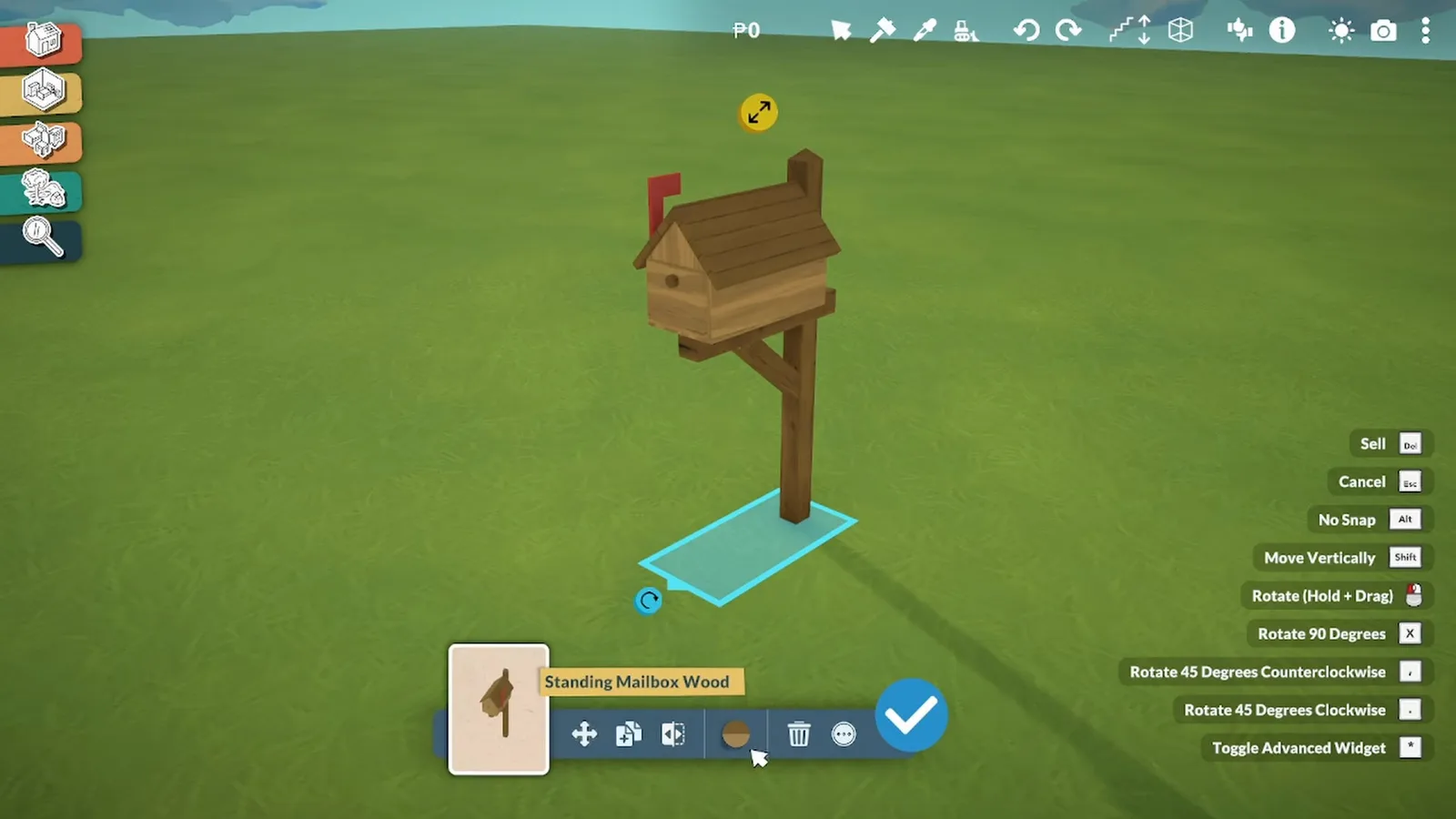
Installed CC is indistinguishable in behavior — snapping, recoloring, selling.Watch at 4:24
Part 1 · Blender
Model the object and put the file where the game reads it
Paralives' look is simple and stylized, which makes this a friendly first modeling project. The mesh rules come from the official wiki: floor items sit centered on the origin with their base at z=0, face Y+, and export as FBX.
- 3
Model a simple object in Blender
Blender is free, and Paralives' stylized look means simple shapes are enough — this demo is a mailbox. New to modeling? The creator recommends the classic donut tutorial first. Keep the object on the floor plane: the wiki's mesh guide wants floor items centered on the origin with their base at z=0 and facing Y+.
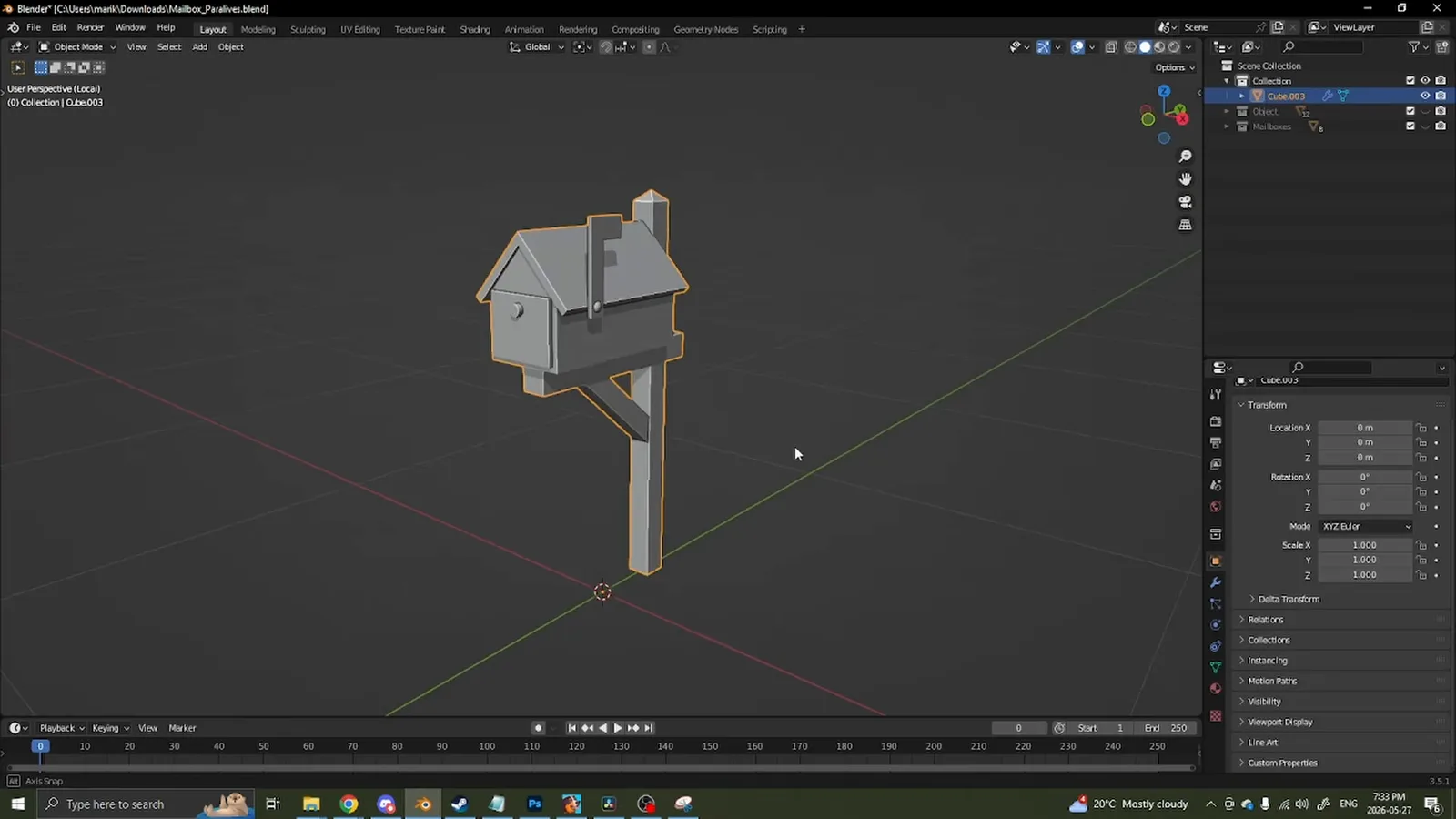
The demo object: a mailbox from simple shapes — Paralives' style rewards clean and flat.Watch at 0:03 - 4
Export as FBX with the right checkboxes
First make the scale real: this mailbox was over two meters tall on the first try, so check dimensions by eye and apply all transforms so scale reads 1.0 — and flip any face that shows red in Blender's overlay, or it renders inside-out in game. Then export FBX with Selected Objects and Apply Transform checked and Bake Animations off; the Paralives team itself works with FBX files, with Z Forward and Y Up per the official mesh guide.
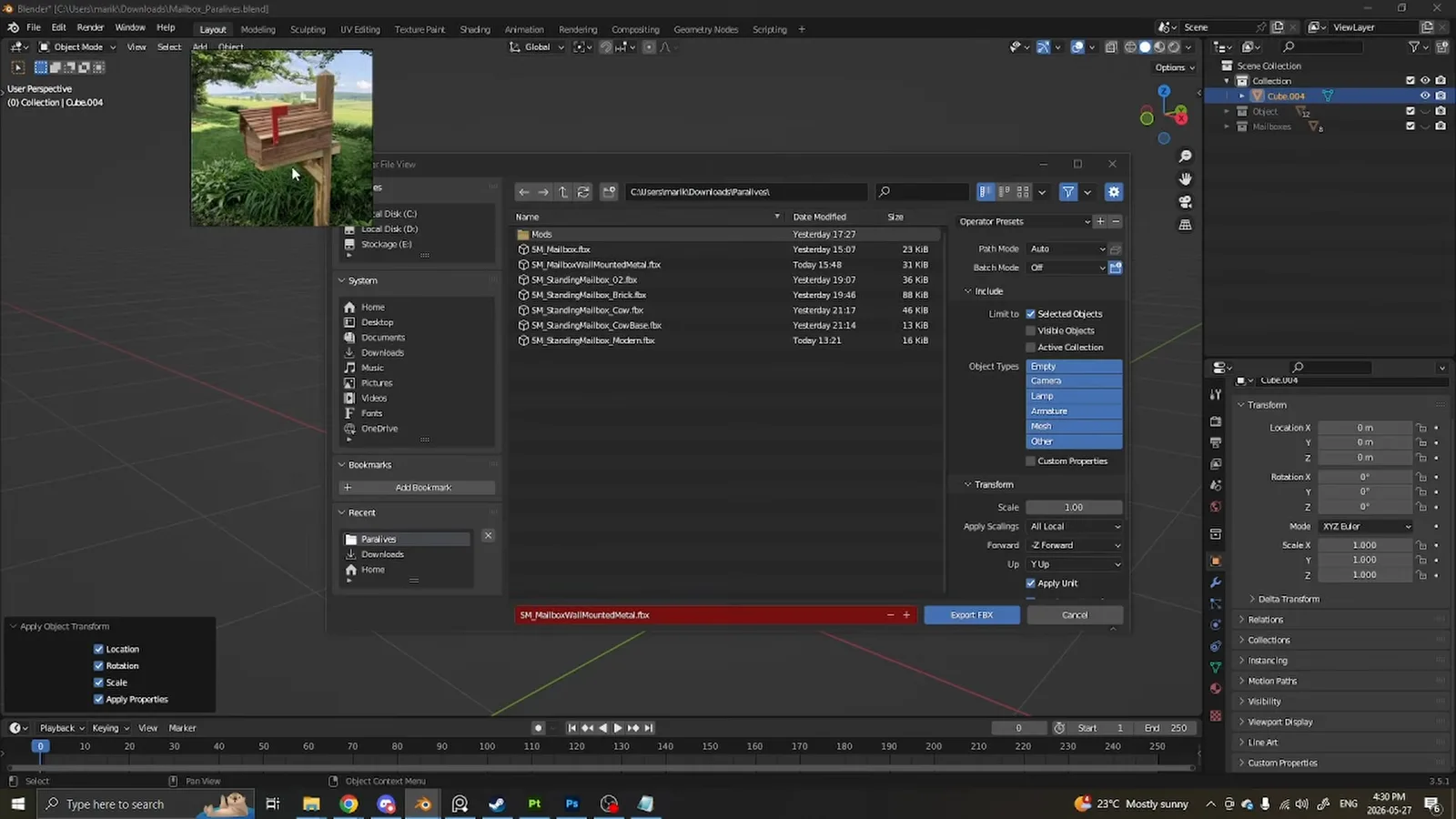
The exporter settings the video uses: Selected Objects, Apply Transform, no baked animation.Watch at 2:36 - 5
Drop the FBX into your mod's folder
After you create a mod (next section), the game gives it a folder on disk — the folder icon in My Mods opens it. Drag your exported FBX inside; creators often add a subfolder per file type. The game reads meshes (fbx, obj), textures (png, jpg) and audio (ogg, mp3, wav) from here, per the wiki's modding guide.
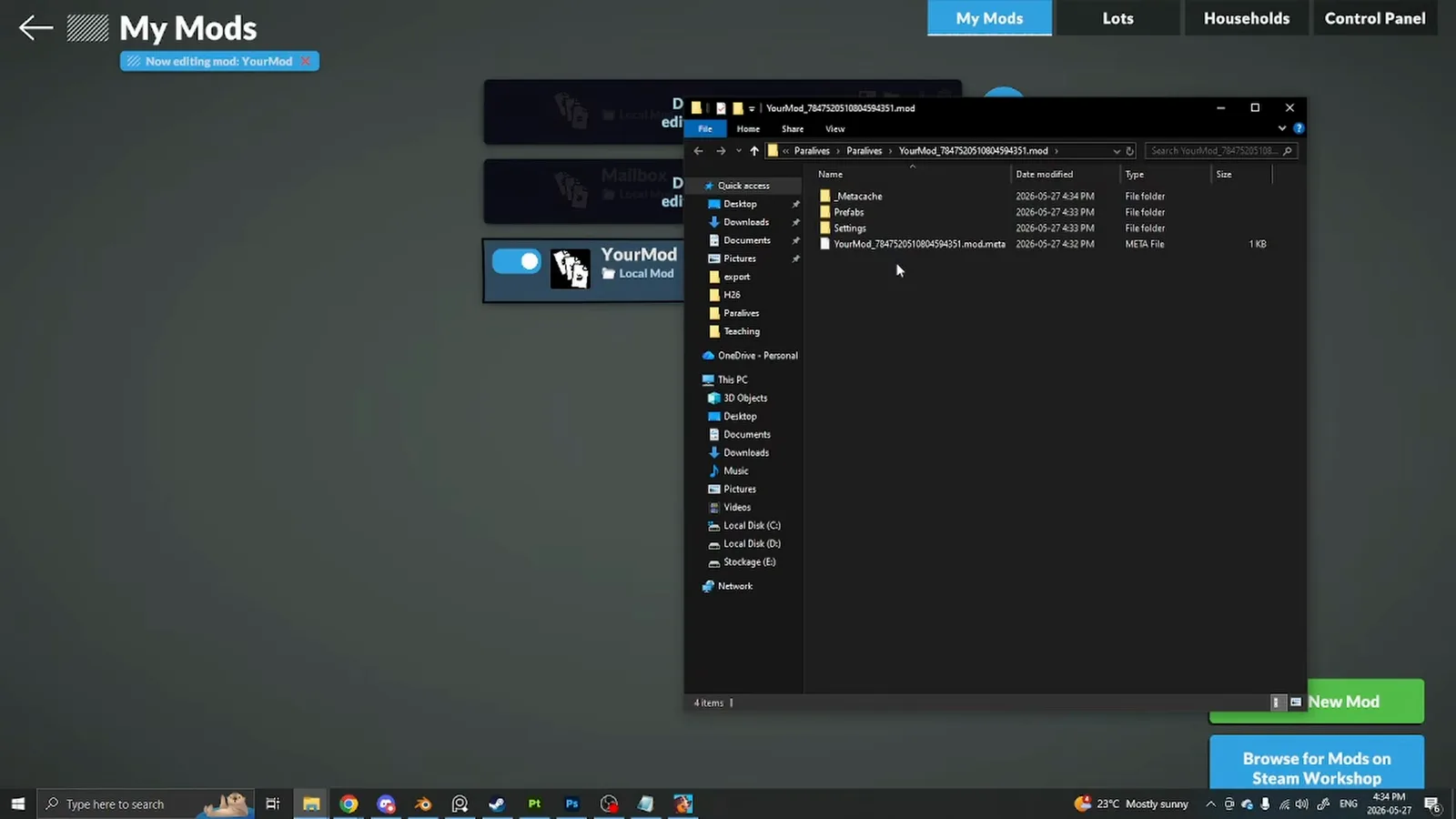
One folder per mod — the folder icon in My Mods opens it directly.Watch at 5:18
Part 2 · The in-game mod editor
Register the object in the Control Panel
Everything official objects have — a catalogue entry, a name, a search tag, a mesh, behaviors — your object gets here too, in the same editor the developers use. The step order follows the wiki's own furniture guide.
- 6
Create a mod in My Mods
From the game's main menu, open Mods. My Mods lists your local mods with Create New Mod and Browse for Mods on Steam Workshop buttons. Name yours, leave it activated, and click Edit this Mod. While one mod is open for editing, the others show as disabled — the same workspace behavior as our town-editing guide. The Ctrl + F2 shortcut opens the Control Panel from inside a game, too.
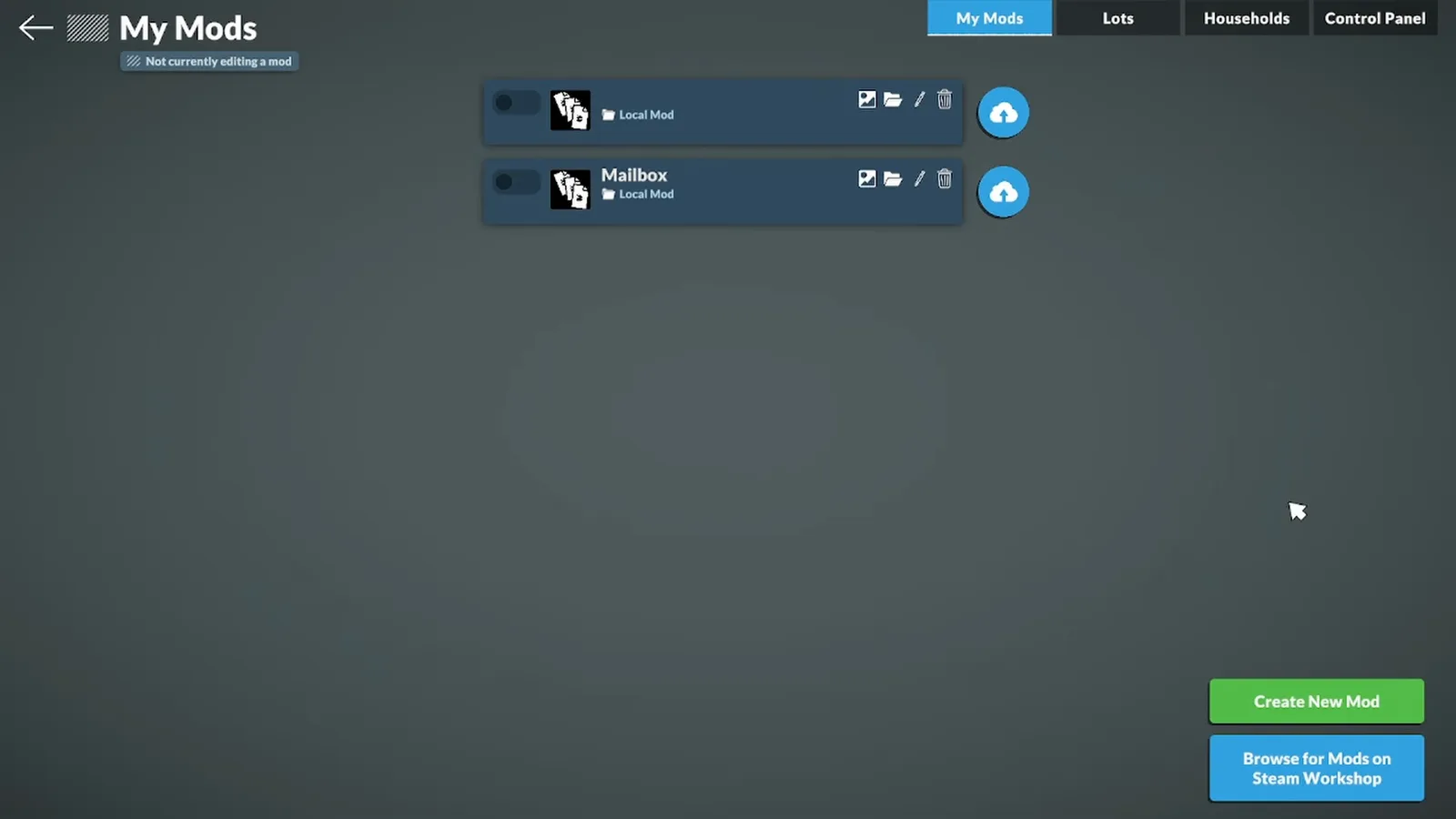
Every custom object ships inside a mod — create it here, edit it here, upload it from here.Watch at 2:58 - 7
Add an item entry under Items
The Control Panel is the mod editor's front door, and Items is its catalogue registry — every placeable object in the game lives there. Click the plus next to All Items and scroll to the very bottom: your new, completely empty entry is waiting there.
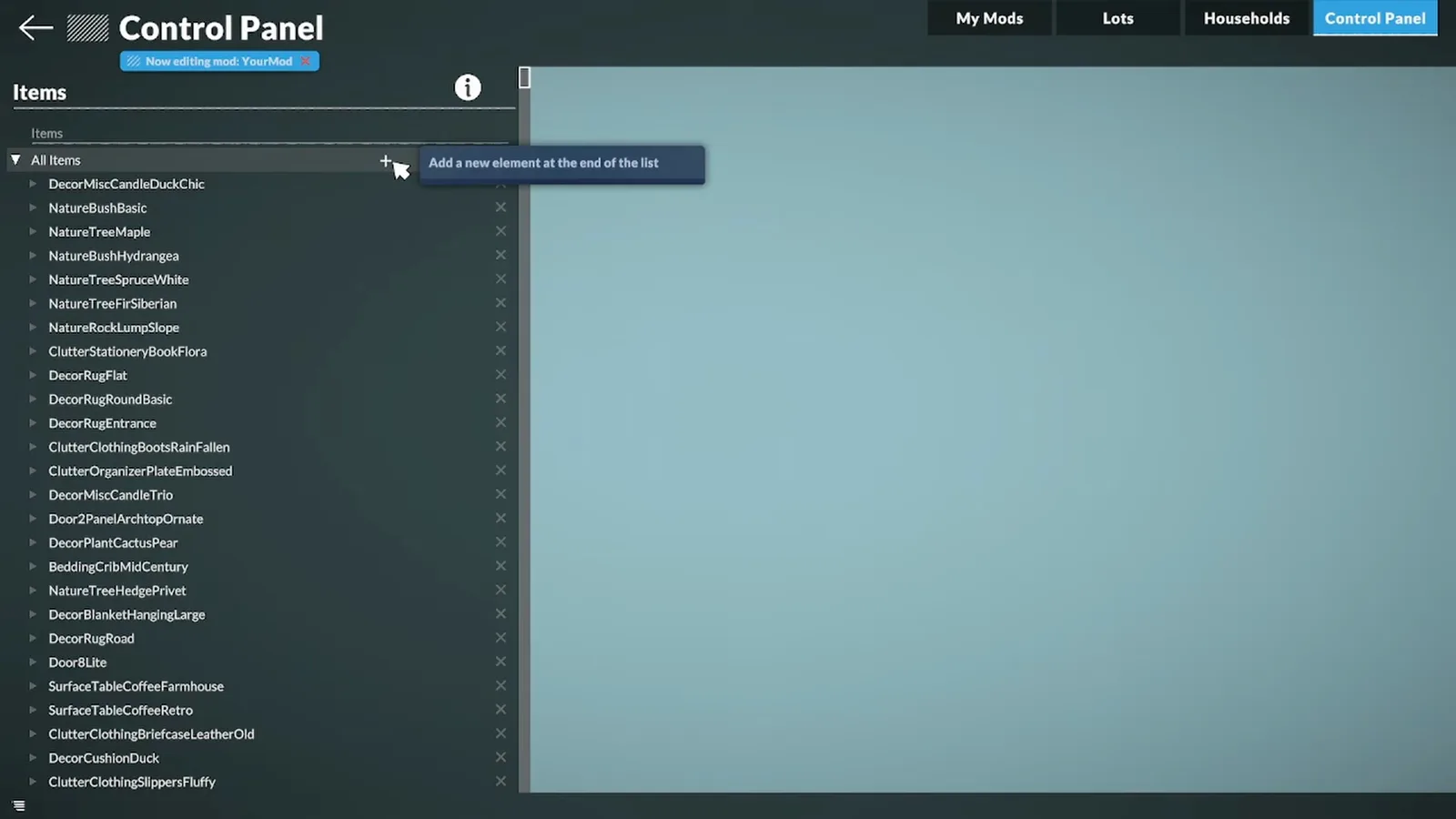
The official catalogue and your CC share one registry — new entries land at the bottom.Watch at 3:28 - 8
Name the item — internal key and readable name
Type the item's name into Display Name; it becomes the internal key (Item_StandingMailboxWood here). Then click the little icon beside the field: the Edit Translation dialog is where the readable name goes, into Translated text. Skip that second field and the catalogue shows the raw key instead of a name.
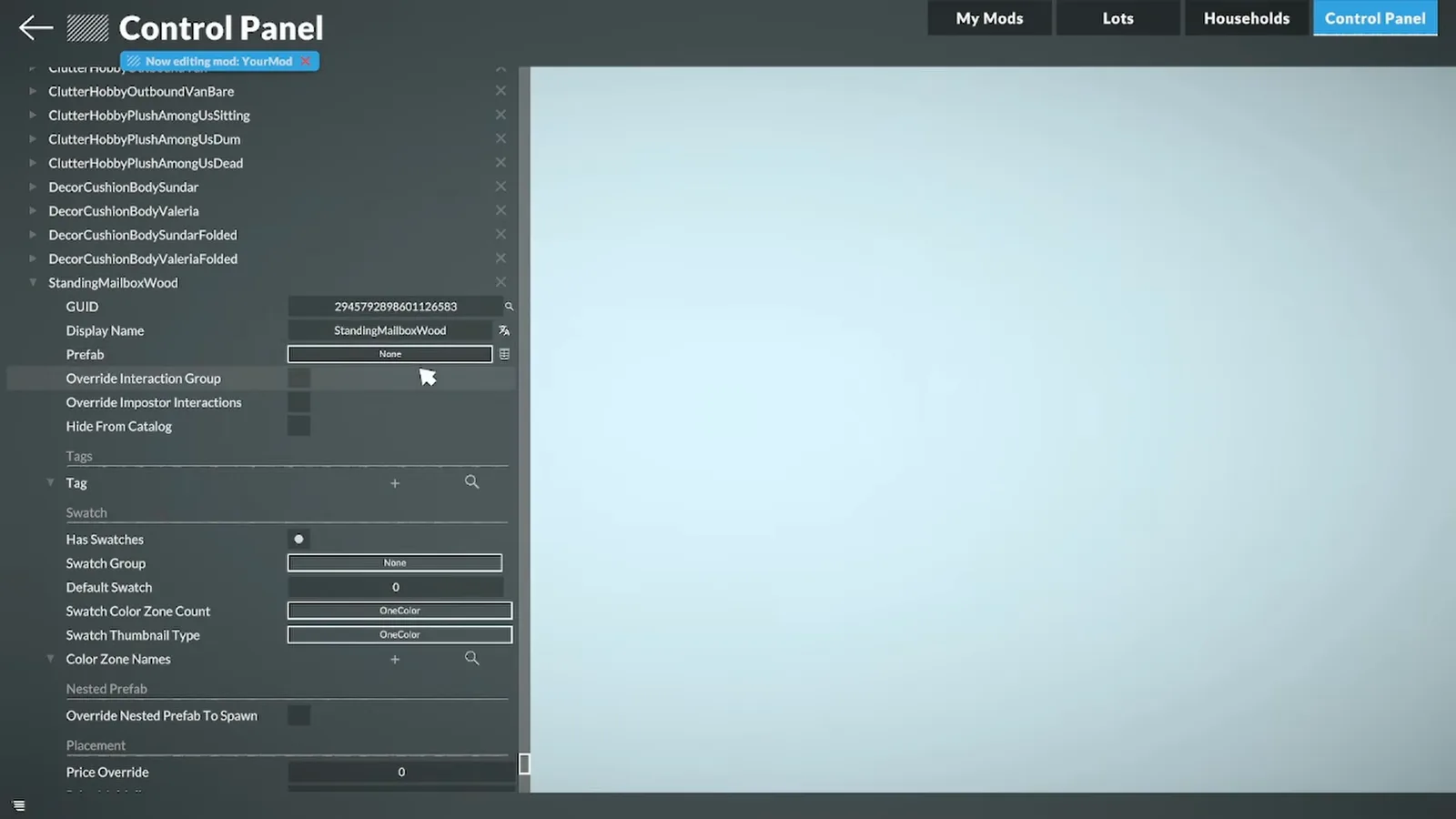
Two names per item: the key the game uses, and the Translated text players read.Watch at 4:40 - 9
Add the tag that makes it findable
Under Tag, click plus, then None, and pick from the list — DecoColor, Doors and so on. This one setting decides whether the item appears in the Build Mode catalogue at all, and the wiki notes it also assigns a base price. No tag, no catalogue entry: the top cause of "my custom content is not showing up".
Choosing a tag — the step that decides whether search can ever find your object.Watch at 4:28 - 10
Create the prefab
The Prefab field starts as None. Click the little icon beside it and the Create a Prefab dialog asks for a New Prefab Name — the creator types the display name again, without spaces — plus a Prefab's Type. OK opens the Prefab Editor, where the mesh and behaviors get attached.
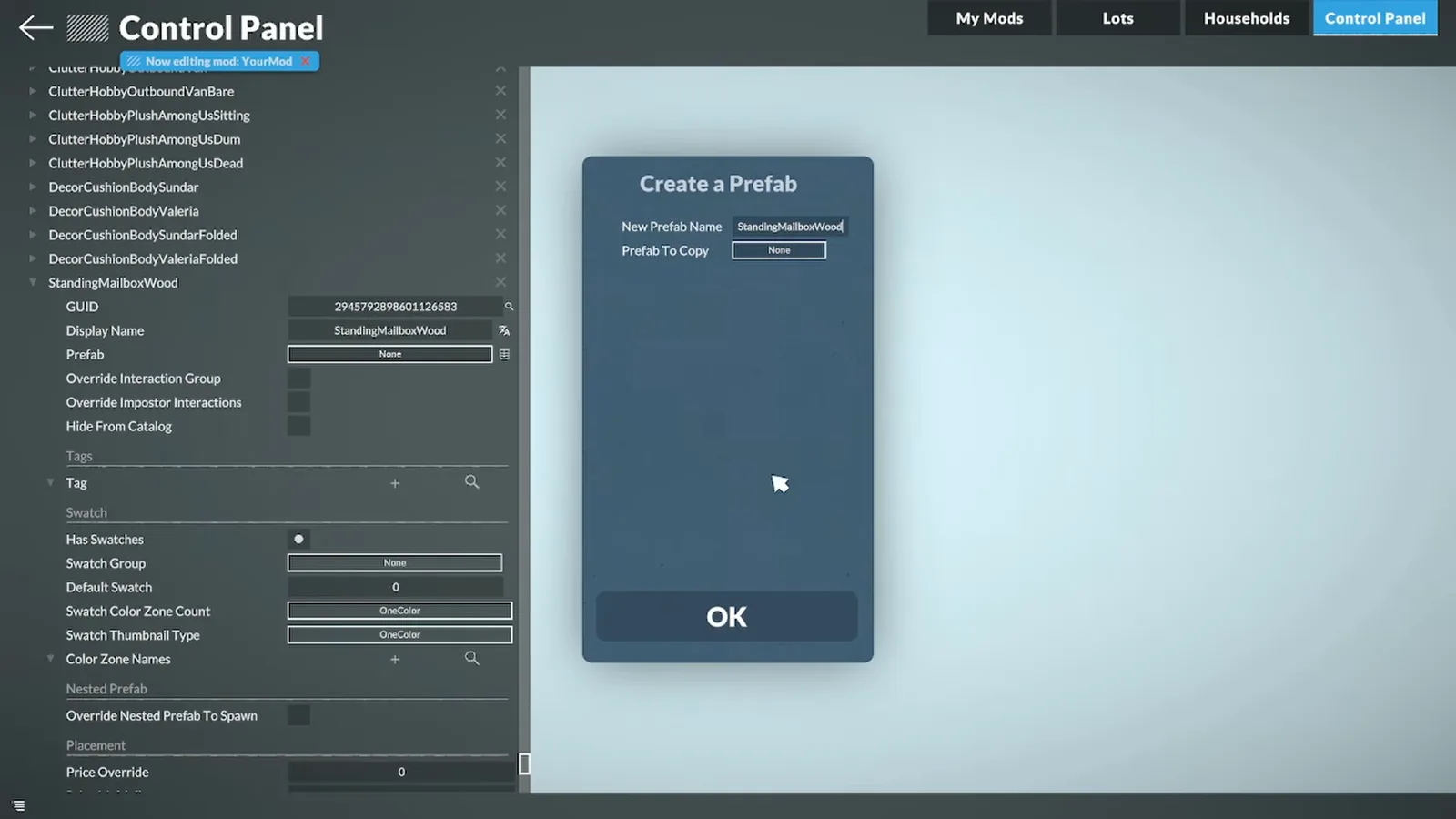
Prefab = the object's body. Name it like the item, minus spaces.Watch at 4:48 - 11
Attach the mesh with ItemMeshReference
With the item's Root selected, click Add and pick ItemMeshReference from the component search — the component that binds a mesh file to the object. Scroll down to its Asset Mesh field, click None, and your FBX should appear in the picker, straight from the mod folder.
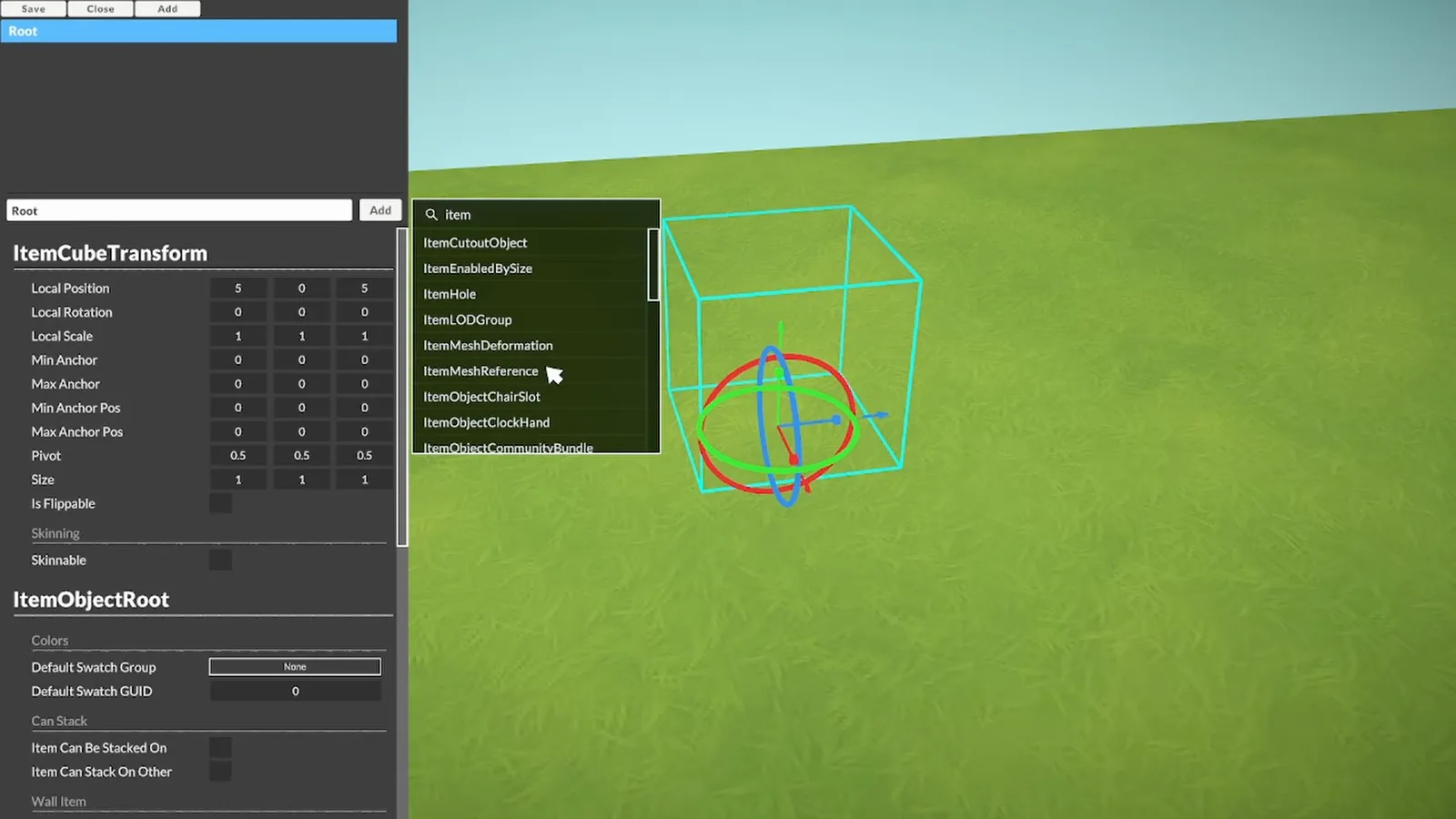
ItemMeshReference is the bridge between your FBX file and the catalogue entry.Watch at 5:04 - 12
Fit the bounding box and set behaviors
Your mesh sits inside a cyan bounding box that controls selection size, snapping and out-of-bounds checks. Click GO next to Set Edited Prefab Size to Mesh Size to fit it. If it hangs off-center, fix the object's origin in Blender and re-export — replacing the file when the game asks. Nearby toggles do the rest: Is Flippable, Is Scalable, Item Can Be Stacked On for tables, Item Can Stack On Other for small props.
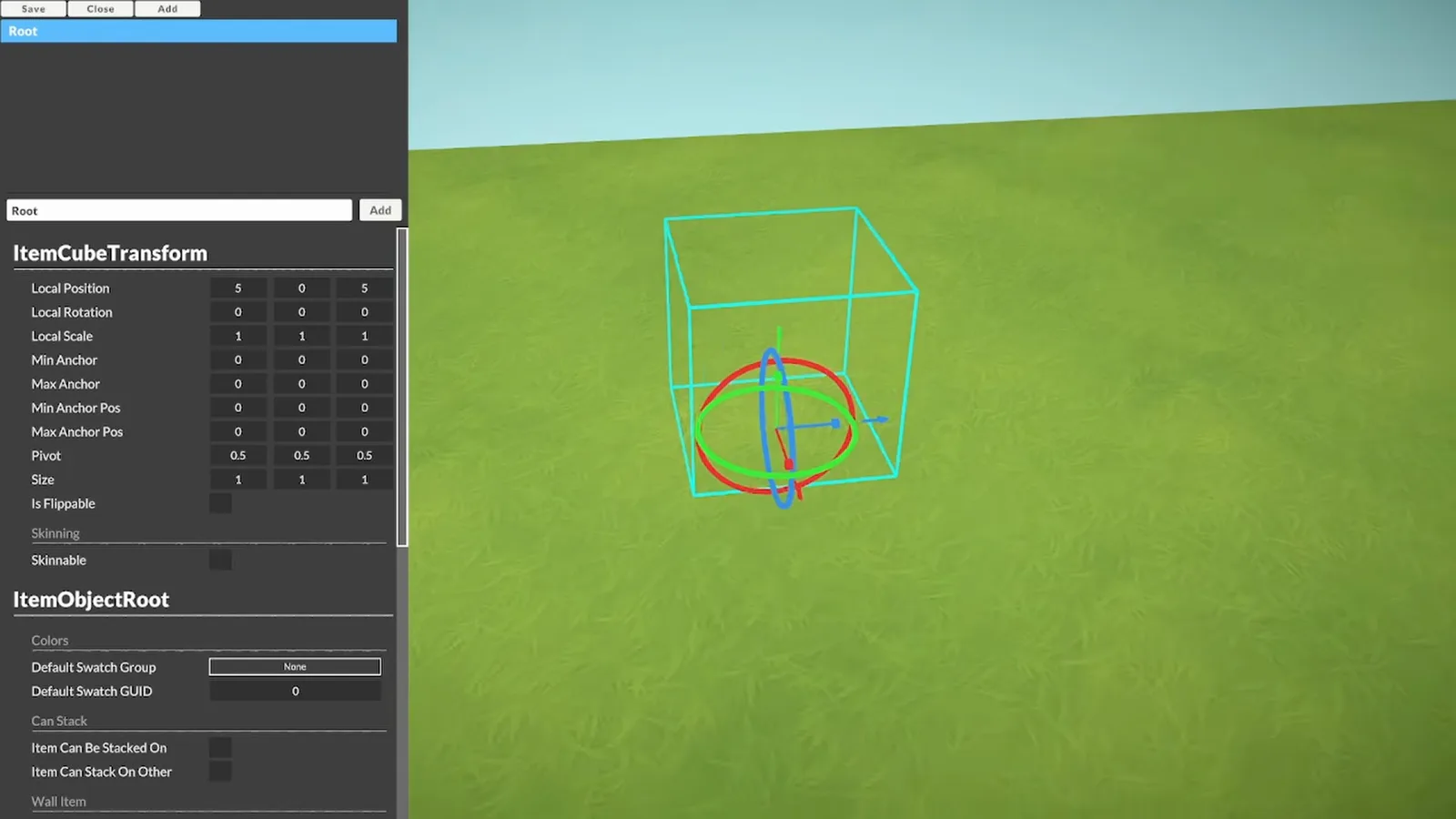
The cyan box is the object's physical footprint — GO fits it to the mesh.Watch at 4:56
Part 3 · Colors, testing, publishing
Make it recolorable, test it, ship it to the Workshop
A custom object is not done until it recolors and turns up in search. The color trick is vertex paint in Blender; the publishing trick is a square thumbnail and one cloud button.
- 13
Test it: search your tag word
Save, enter any lot, and type your tag word into the catalogue search. The standing mailbox appears next to official items — place it, flip it, click through its options. If nothing appears, the tag is the first suspect; the wiki also suggests refreshing the catalogue or restarting the game before panicking.
The moment of truth: your object, findable by the tag you gave it.Watch at 9:43 - 14
Set up swatches and color zones
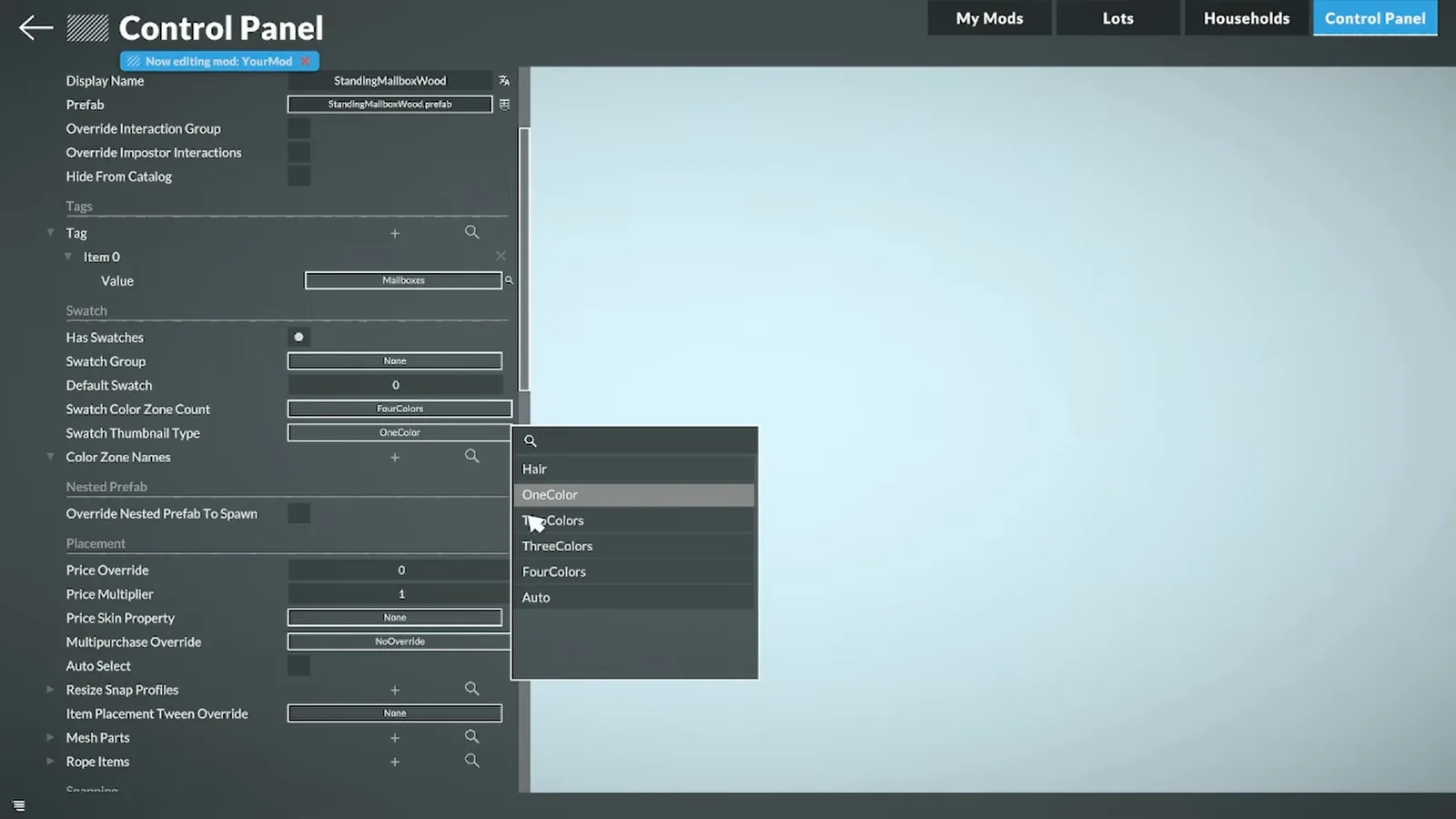
Back in the item settings, switch Has Swatches on, then set Swatch Color Zone Count — FourColors in the video — and a Swatch Thumbnail Type. In game, the Style Creation panel then lists Color 1 through 4 for your object, and anyone who downloads it can repaint each zone. One catch: until the mesh has vertex colors, only the first zone actually works.
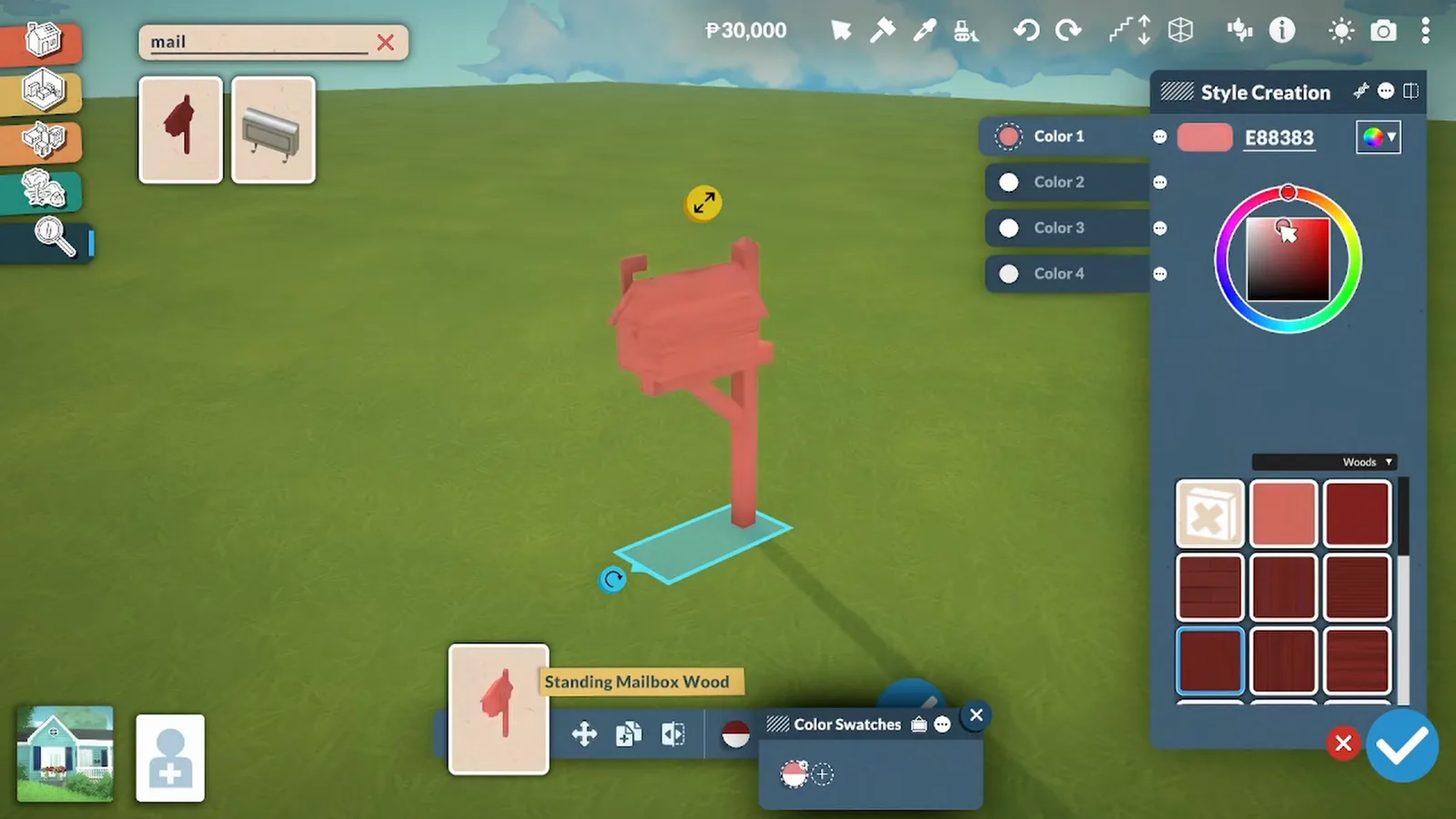
Four color zones, ready to be wired to the mesh's vertex colors.Watch at 9:47 - 15
Paint vertex colors so every zone works
In Blender, separate the parts that get their own color (P is Blender's separate shortcut), switch to Vertex Paint, and fill each part with a pure channel color: white for the most prominent zone first, then pure red, green, blue — Paralives maps at most four. Use Paint, Set Vertex Colors, apply transforms, export, and replace the FBX in the mod folder. Back in game, all four zones respond.
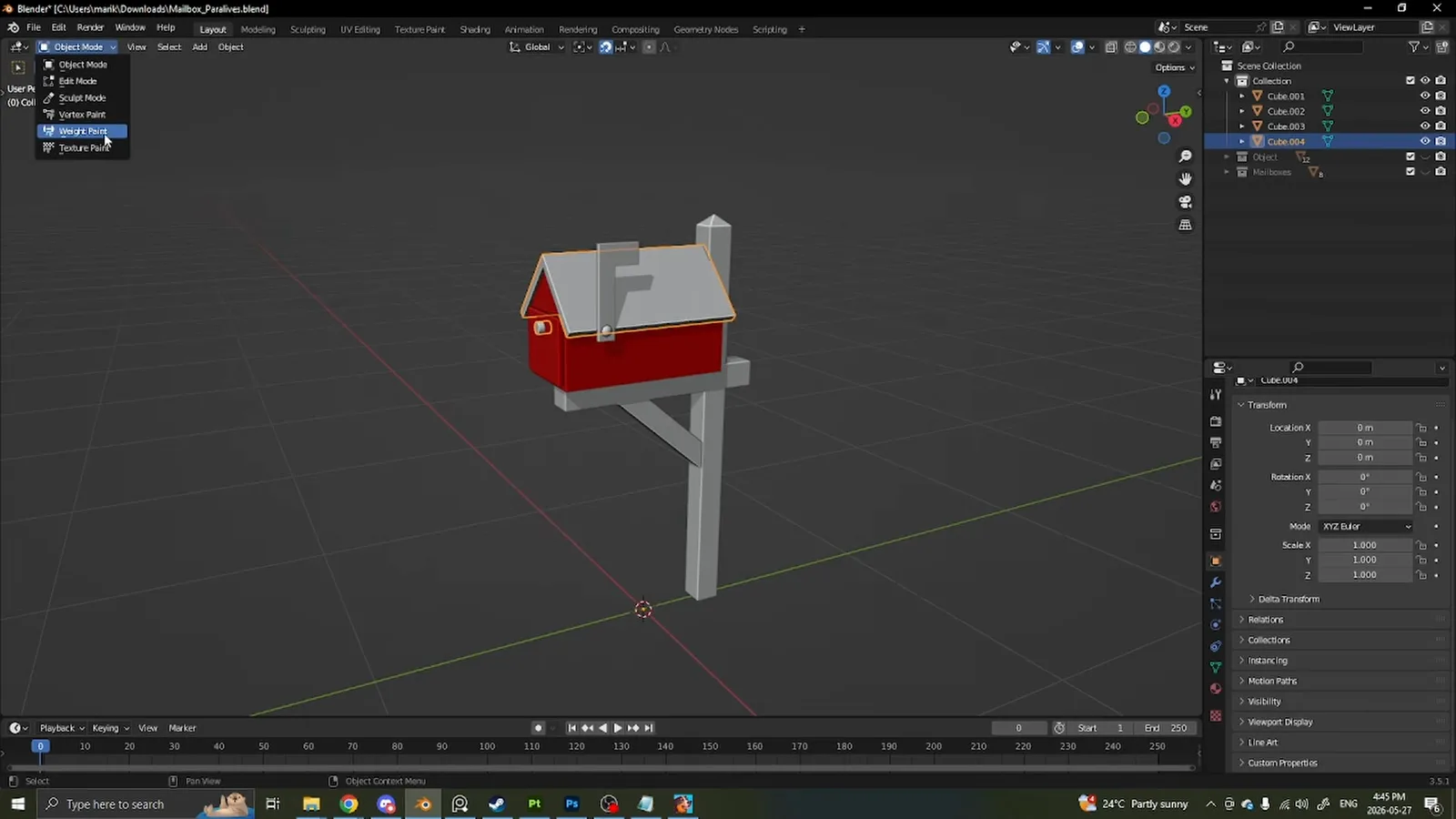
Pure channel colors are the addresses the game reads — white first, then red, green, blue.Watch at 11:16 - 16
Publish: thumbnail, description, cloud
Save and exit. In My Mods, the picture icon sets a thumbnail — it must be square or it gets cropped, and under 15 MB or the upload fails. The pencil adds the description, and the cloud icon uploads to the Steam Workshop; after updates, click the cloud again and add change notes. Your page goes live with screenshots, comments and the Subscribe button.
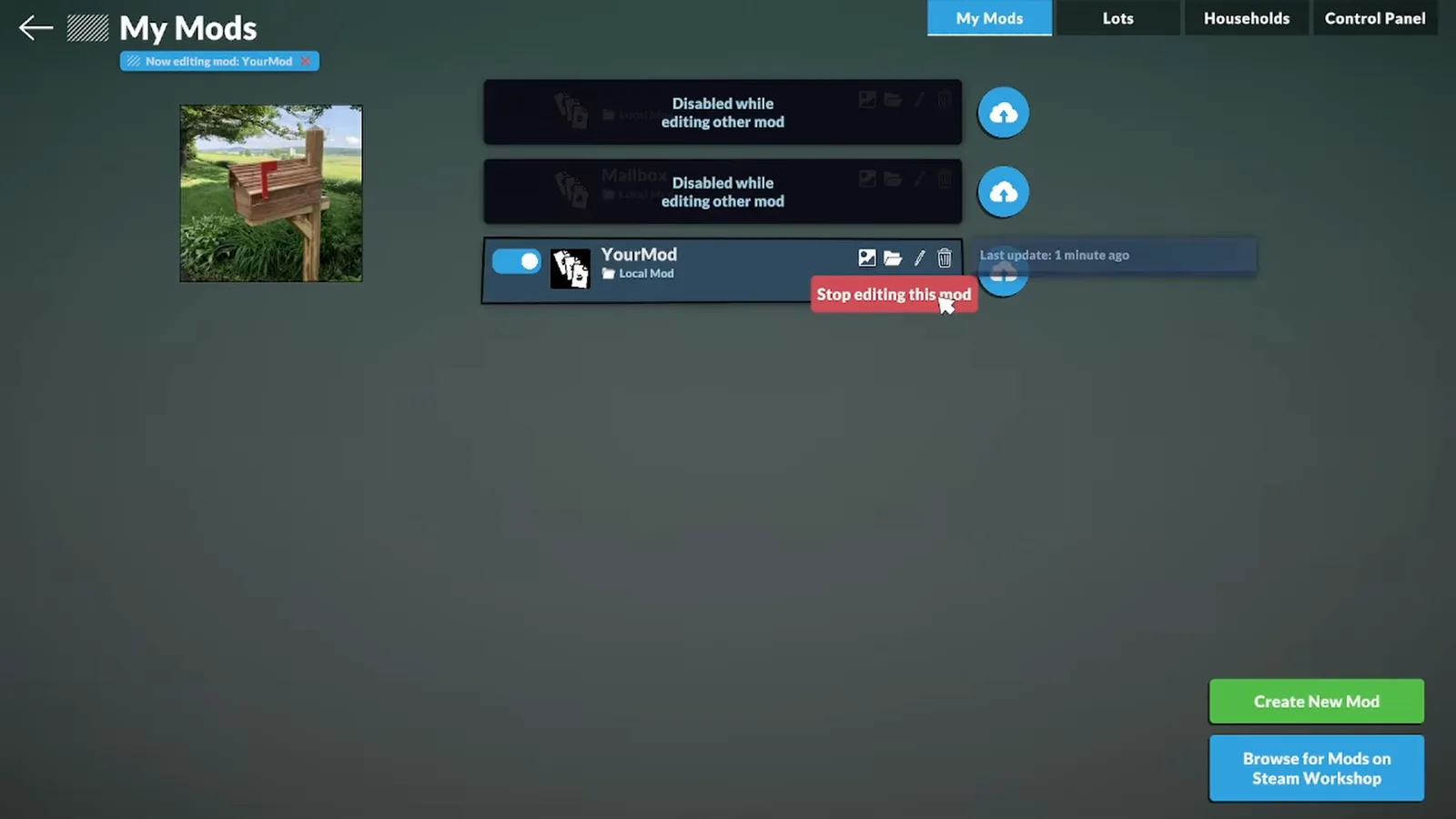
One cloud button between your Blender file and everyone else's catalogue.Watch at 15:07
Coming from The Sims 4? What is different
Sims 4 CC is a third-party ecosystem: .package files gathered from Patreon and Tumblr pages, a mods folder you manage by hand, and a launcher warning about script mods. Paralives turns that model inside out. The mod editor is part of the game itself, the Steam Workshop is the official channel, and the developers actively point players there — their June 2026 announcement celebrated 13,000 uploaded items of free mods and CC.
Patreon and Tumblr do not disappear — Paralives creators do announce their work there, and some share files directly. But installation always ends the same way: a Workshop subscription, or files dropped into the mod folder the game creates for you. There is no loader to install and no launcher prompt to clear. Files shared outside the Workshop are community territory, though — unsupported, so keep a save backup, and let our install guide walk you through the manual routes.
The ceiling is different, too. The official tools add and edit content — meshes, textures, swatches, sounds, clothing — but they do not support scripting, and the game's UI is off-limits; the wiki lists script mods as under consideration but not confirmed as of 0.1.9b. What the tools already cover is wide: the wiki's modding portal publishes official guides for furniture, clothing, traits, skills, recipes, sounds and music — exactly the ground Sims-style object CC plays in.
Paralives custom content FAQ
- Does Paralives allow custom content?
- Yes — it is built in. Paralives ships its own mod editor (the Mods menu and the Control Panel), accepts player meshes and textures, and distributes everything through the Steam Workshop, which the developers describe as the home of "free mods and CC". The old question of whether Paralives would allow CC is settled: the tools are already in the game.
- Why is my custom content not showing up?
- The most common cause is a missing tag — an item without a tag never enters the Build Mode catalogue, so search finds nothing. If the tag exists, run the wiki's recovery steps: refresh the catalogue, turn the mod off and on in My Mods, and restart the game. Still stuck? Our mods-not-working guide covers the deeper fixes.
- Is there custom content for hair and clothes?
- Paramaker content is part of the official toolset: the wiki's modding portal publishes step-by-step guides for creating clothing items and even custom glasses, and creators share what they make on the Workshop. Expect the same pipeline as objects — create in the editor, publish with the cloud button.
- Do I need Blender to use custom content?
- No. Using CC is a subscribe-and-play affair: Workshop items install through the game itself, and manually shared files just get copied into your mod folder. Blender only enters when you want to model your own objects — and since the studio itself works in Blender, every official guide assumes it.
- Is Paralives custom content free?
- The official channel is free: subscribing on the Steam Workshop costs nothing, and the studio presents it as "free mods and CC". Some creators run Patreon pages for early access or extras, but that sits on top of the Workshop — the uploads themselves stay freely downloadable.
- Can custom content break my game or save?
- The risk profile is lower than in The Sims 4, because the official tools cannot inject scripts — CC is content, not code. The wiki's one security warning concerns Blender: .blend files can auto-run Python, so it recommends disabling Auto Run Python Scripts in Blender's preferences before opening files from strangers. If a mod misbehaves in game, the console (Ctrl + F1) shows its errors, and unsubscribing removes it cleanly.
- What about CurseForge, Nexus Mods and script mods?
- Community channels exist beyond the Workshop: CurseForge and Nexus Mods host Paralives sections, and their files install by copying into your mod folder — our install guide covers the routes and the backups worth taking. True script mods (gameplay code) are a different story: the official tools do not support scripting, and the wiki lists script mods as under consideration but not confirmed as of 0.1.9b.
Keep going in the Workshop cluster
How to install Paralives mods
Workshop subscriptions and manual file installs, step by step — the consumer side of this page's pipeline.
Paralives mods not working?
CC not showing up is usually a tag — but when it is not, this is the troubleshooting ladder to climb.
The best Paralives mods
What the community has published lately, reviewed — much of it made with the very editor this page teaches.
How to download Paralives houses
The build-sharing side of the Workshop: subscribe, place, and manage downloaded lots.
Debug and hidden build items
A popular Workshop mod that unlocks hidden objects — a ready-made example of the CC this page explains.