
What copies, and what doesn't
Items duplicate from their own menu and from the pipette. Colours copy as six-digit codes. Whole floors duplicate through a floor-level button the wiki documents. Whole houses copy through the Lot Library. The one thing with no single tool: pasting a furnished room — you route around it with the library and the pipette.
- Duplicate button lives in every item's own menu
- The pipette (I key) copies finishes and objects in one click
- Colour codes are copy-paste via Ctrl+C / Ctrl+V
- Whole floors can be duplicated — the wiki documents the button
- The Lot Library is the only whole-house copier
- No room-paste tool exists; furnished rooms travel via library lots
Group 1 · Duplicating
The duplicate button and the angled catch
Every object carries its own duplicate command, and alt-click can match a finish exactly. The advanced builds also expose the famous limitation: whatever angle you set is not part of the copy.
- 1
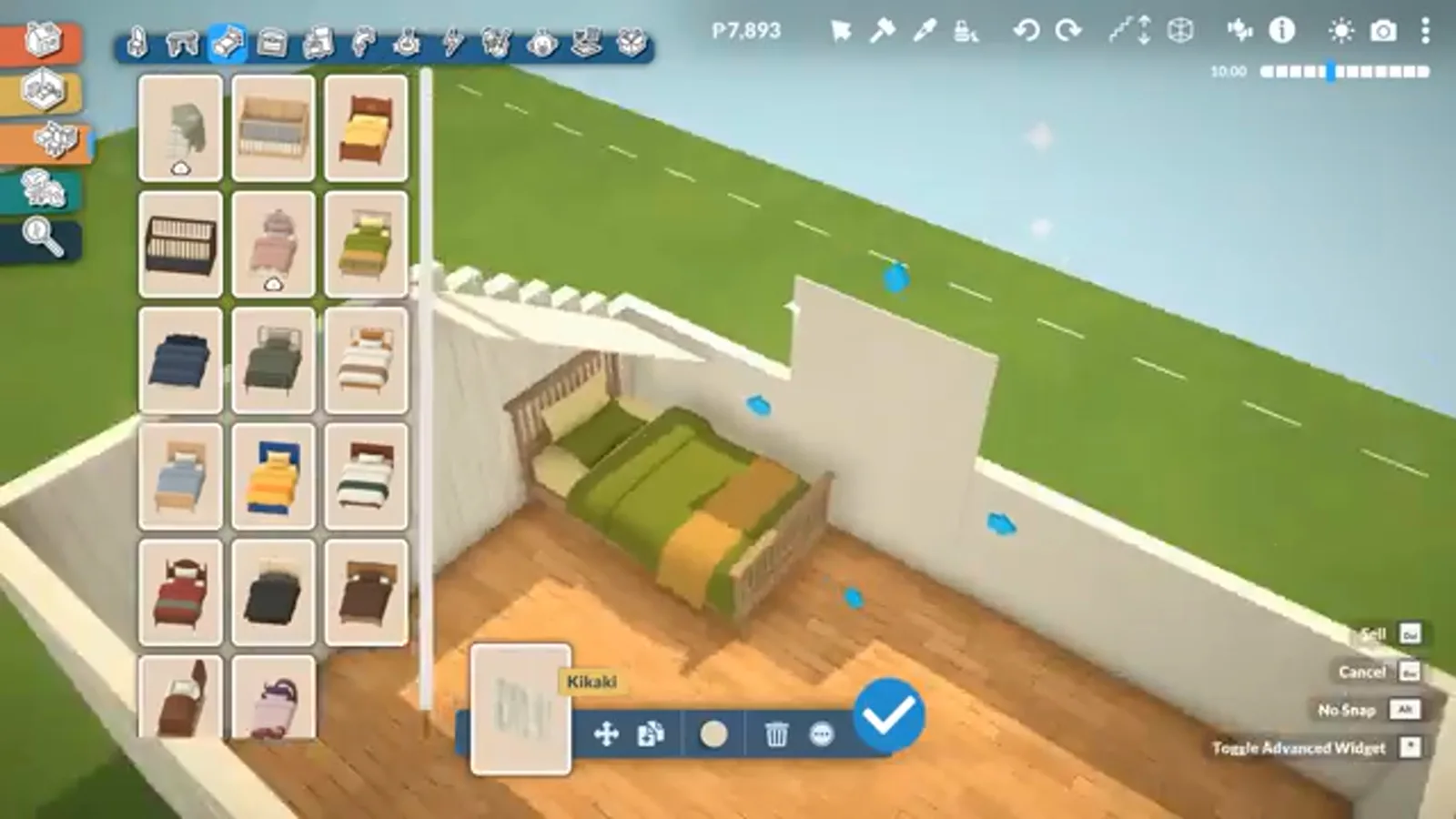
Duplicate any placed piece — angle not included
Click any placed object and its toolbar carries the duplicate action: one click, and a copy is ready to place. The advanced build demonstrates the catch live — on a piece rotated off-axis with the gizmo, the duplicate snaps back to the wall, because the custom angle is not part of the copy. Each angled repeat has to be re-rotated by hand.
One click, identical sibling — minus the lean.Watch at 20:25 - 2
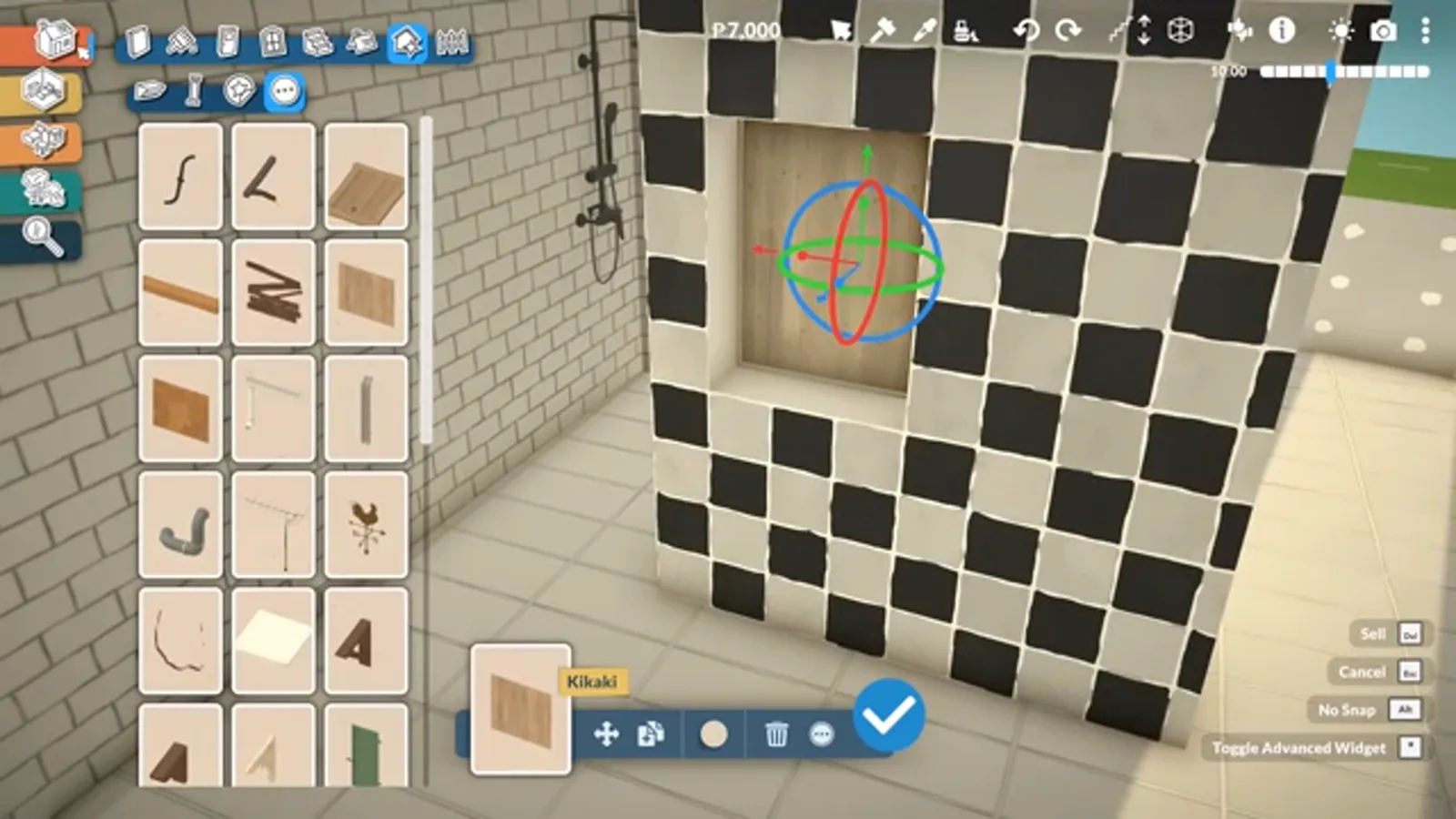
Alt-click a finish to match it exactly
With an item selected, holding Alt while clicking a wall or floor applies that exact finish to the piece — no menu diving. The caveat from the advanced-tips build: it only transfers when the target has a matching single-swatch slot, so patterned multi-swatch finishes sometimes refuse.
Alt + click = paint-by-match.Watch at 8:20
Group 3 · Advanced duplication
The gizmo, and the angle you can't keep
The advanced move tool duplicates with surgical control — and has one famous limitation: whatever angle you set is not part of the copy. Knowing where the limits are is what makes the tricks reliable.
- 3
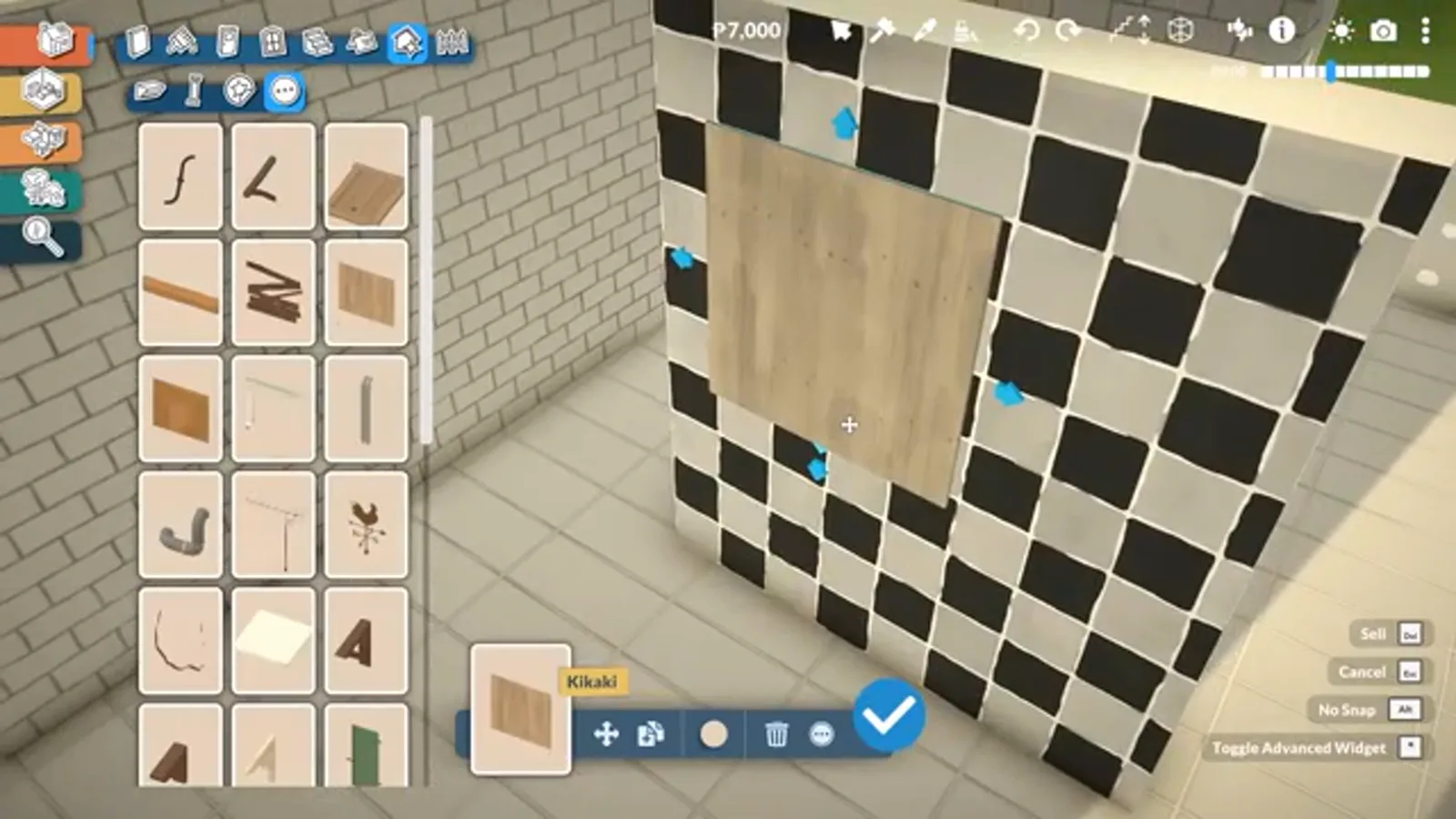
Open the advanced move tool (the gizmo)
The three-dot menu on any selected object (or the asterisk key on the numpad) opens the advanced move transformation tool — the gizmo — which adds free rotation and off-axis nudging to a duplicate's placement. Combined with duplication it produces angled rows and fanned arrangements the snap alone never could.
The gizmo: duplicates, but fussy.Watch at 7:58 - 4
Scale up: duplicated techniques build attics
Every copy trick compounds. The advanced-tips build combines half-height walls, separator tools and duplicated panels to fake a whole attic storey — proof that the duplication moves from this page are the atoms of the site's biggest builds.
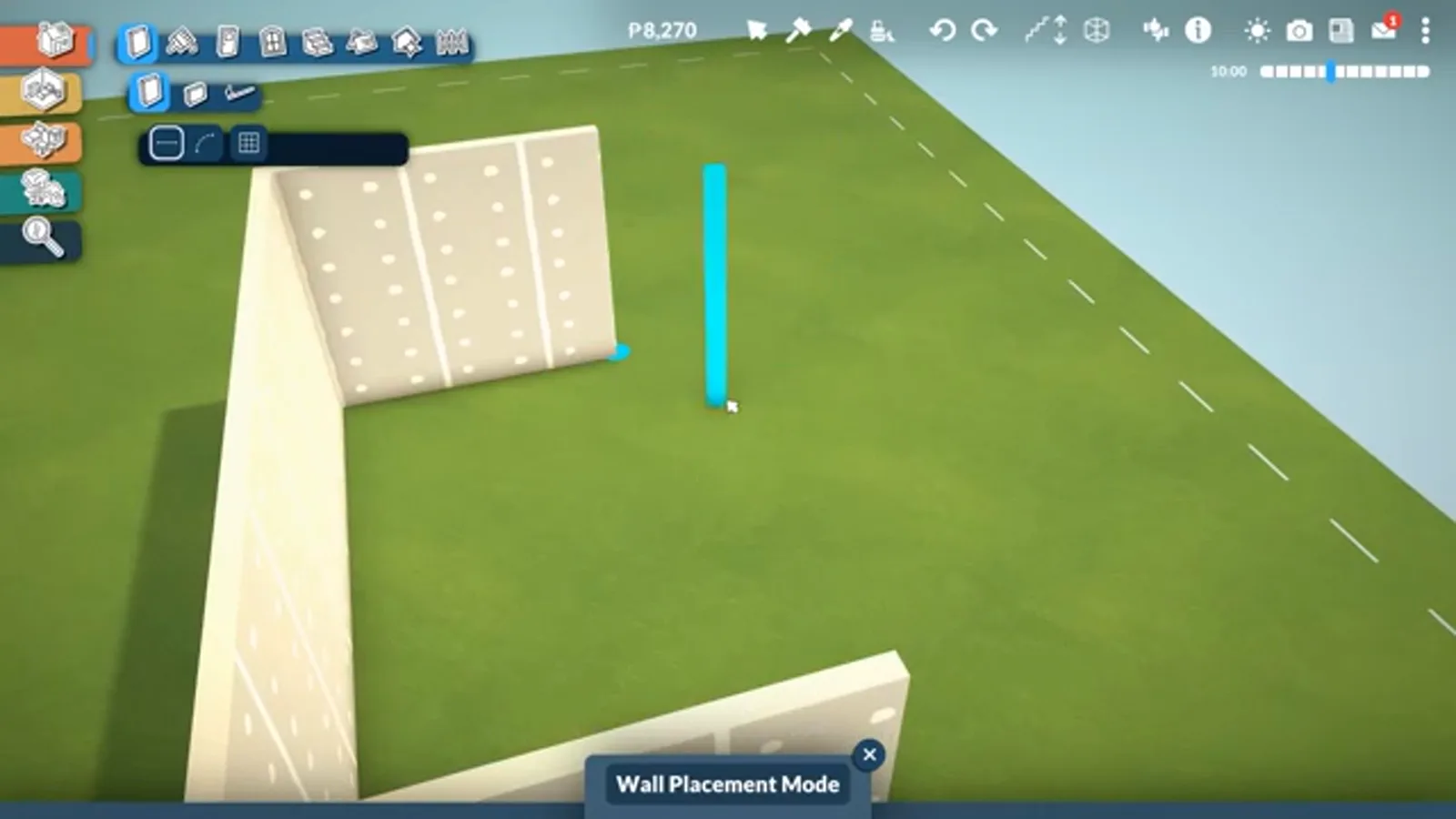
Small copies, big builds.Watch at 16:40
Group 4 · Whole houses
Copy a house via the Lot Library
The Lot Library is Paralives' real duplication machine: save any lot once, then place it again — on the same street, a new save, or after your original burns down. This is also how Workshop builds land in your game.
- 5
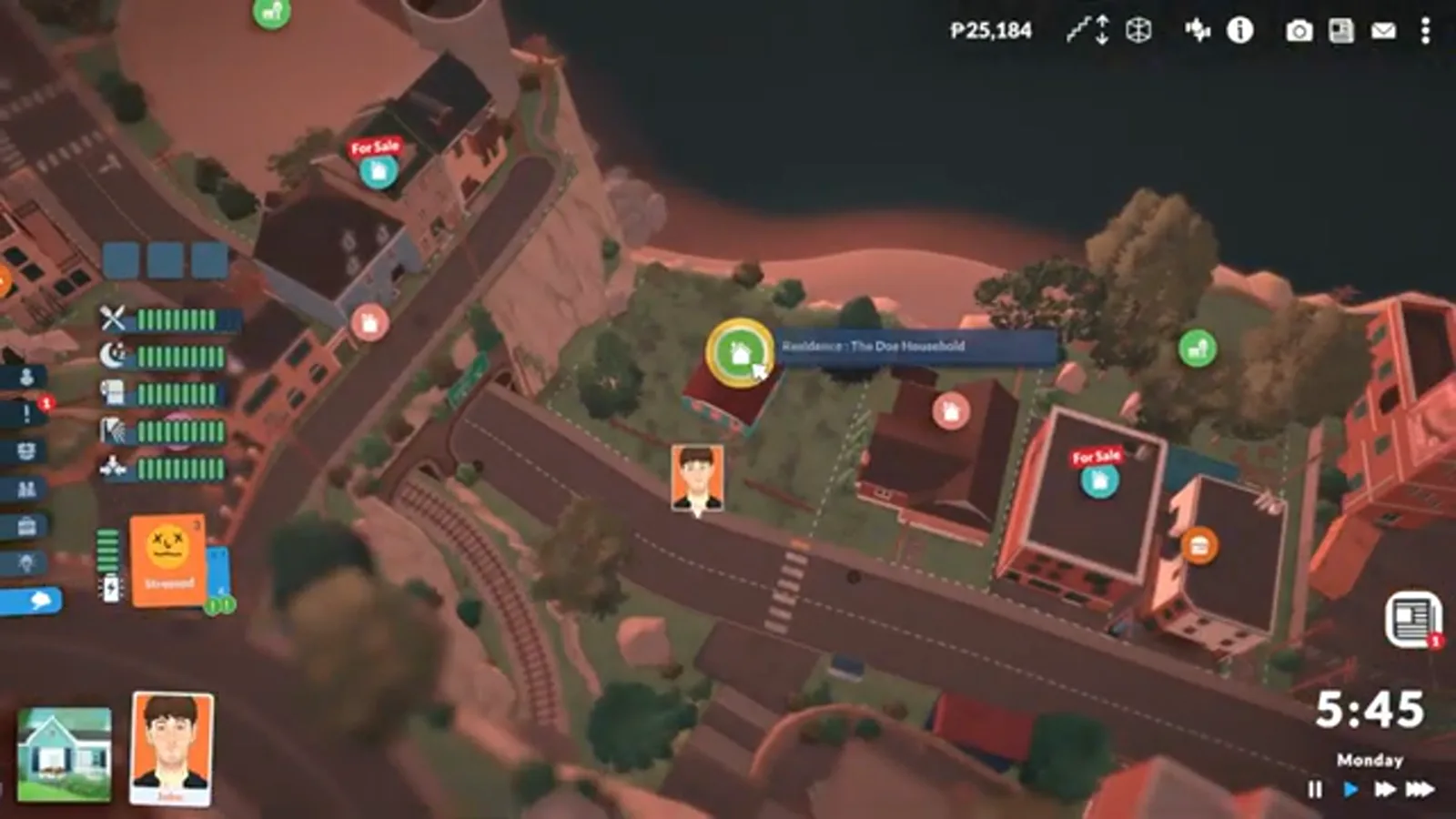
Start from the town map
Whole-house copying begins outside build mode: in the town map, click the lot whose house you want to duplicate. The lot panel opens with the household card and the lot's actions — this is the same entry point for selling, editing and placing library copies.
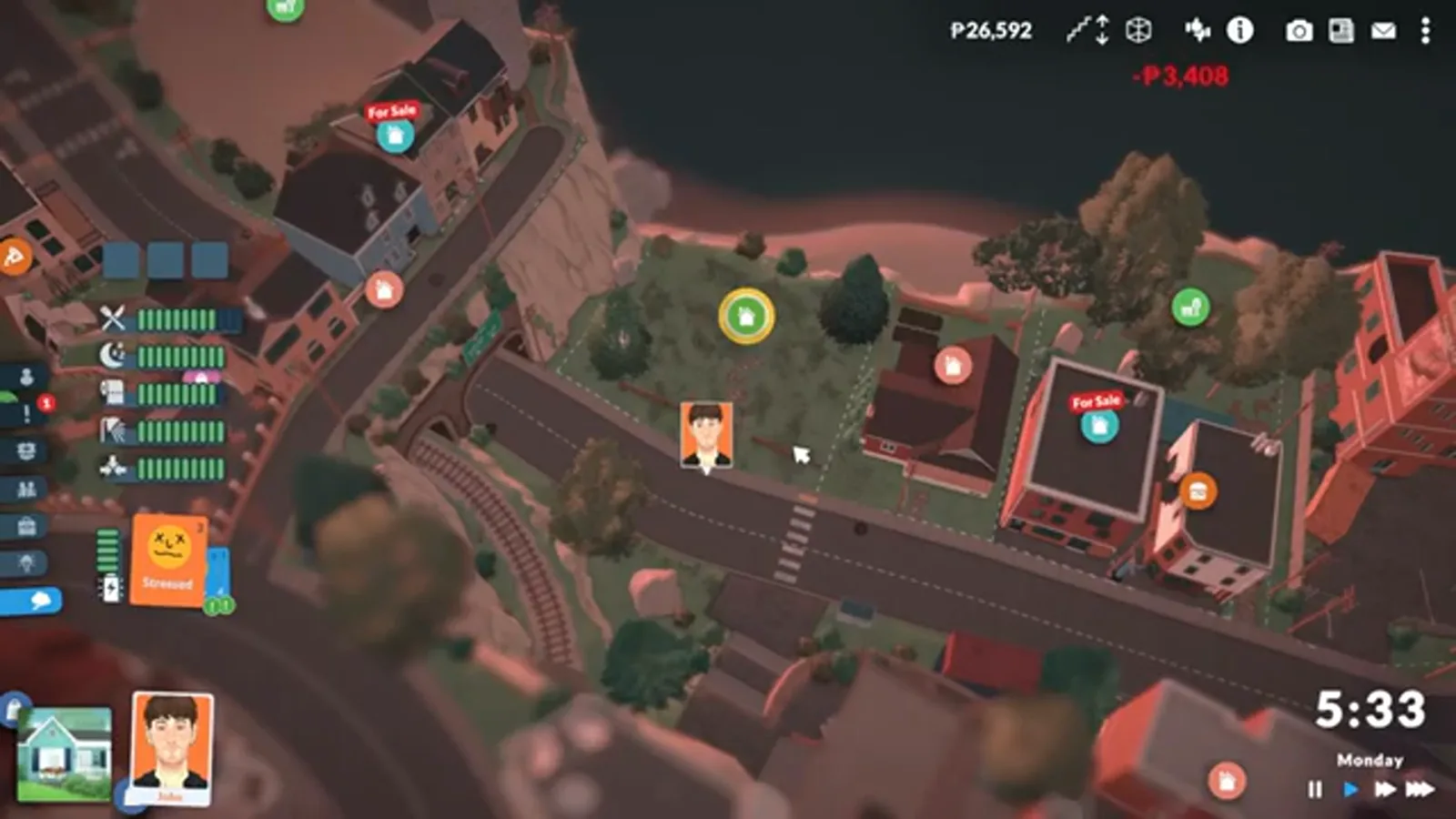
Pick your original.Watch at 0:08 - 6
Open the lot's own menu
The lot panel carries the money actions — sell this lot, view the household — and the gateway to the library. Nothing here is destructive until you confirm it; browsing is free.
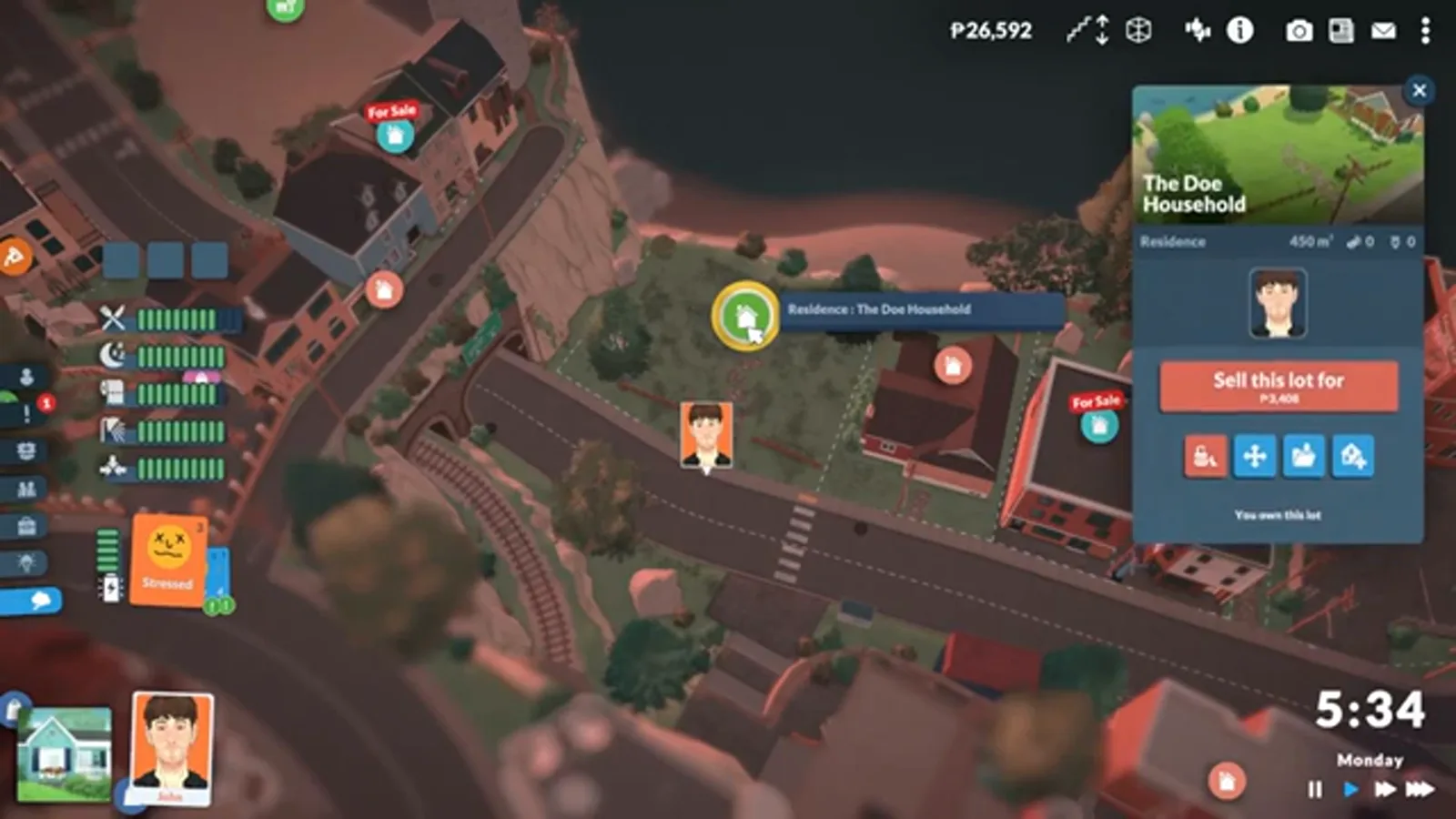
Sell, edit, or copy — your call.Watch at 1:13 - 7
Meet the Lot Library
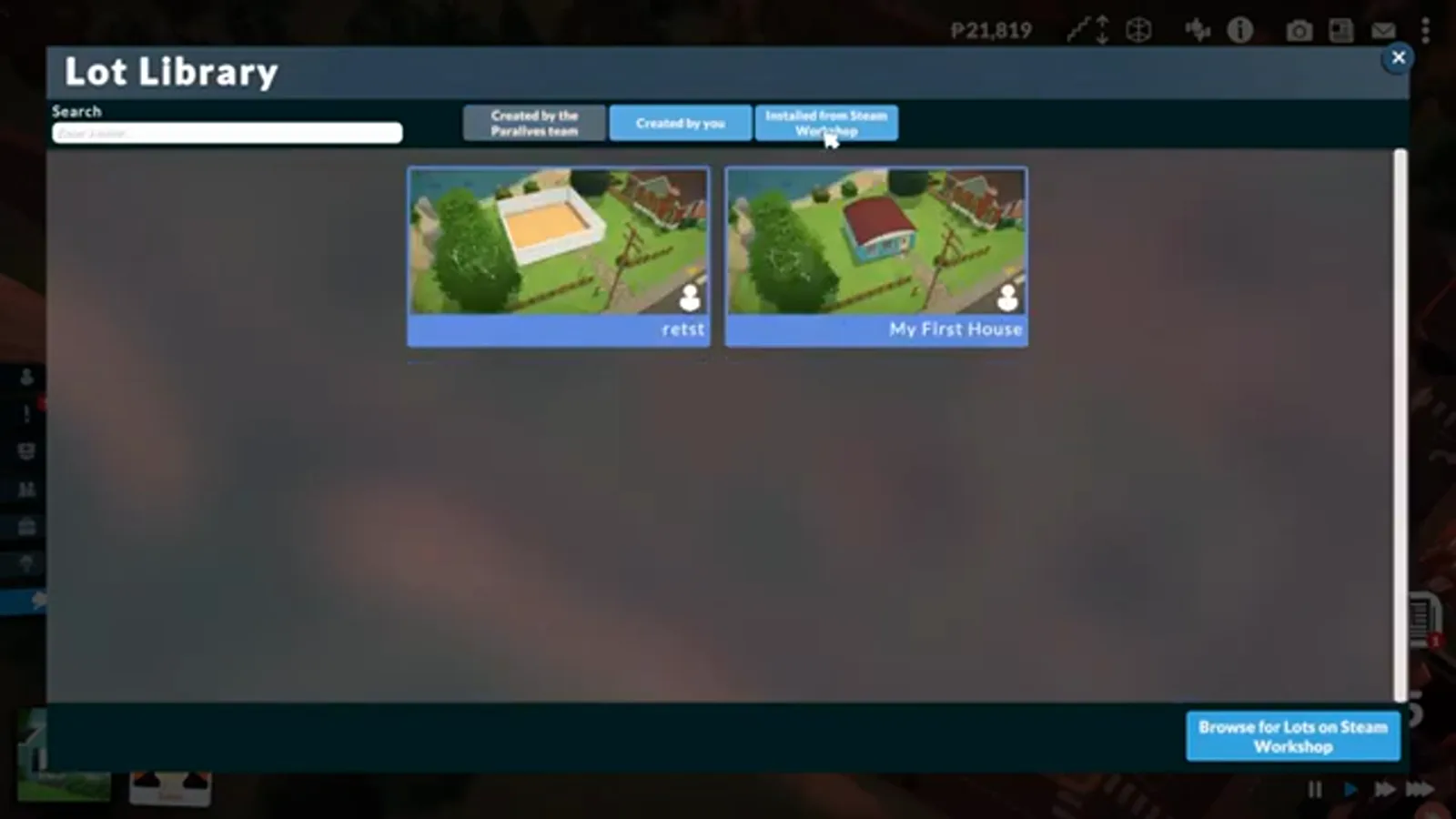
The Lot Library grid shows every lot you have saved — your own builds plus anything subscribed from the Workshop. This is the duplication moment: the original stays where it is, and any entry here can be placed again as a full copy, build and furniture included.
Every card is a restore point.Watch at 0:52 - 8
Choose a copy and enter placement
Picking a library lot switches the map to placement mode: ghost the copy across the town, rotate if the lot allows it, and confirm. The original is untouched — you are placing a duplicate, not moving anything.
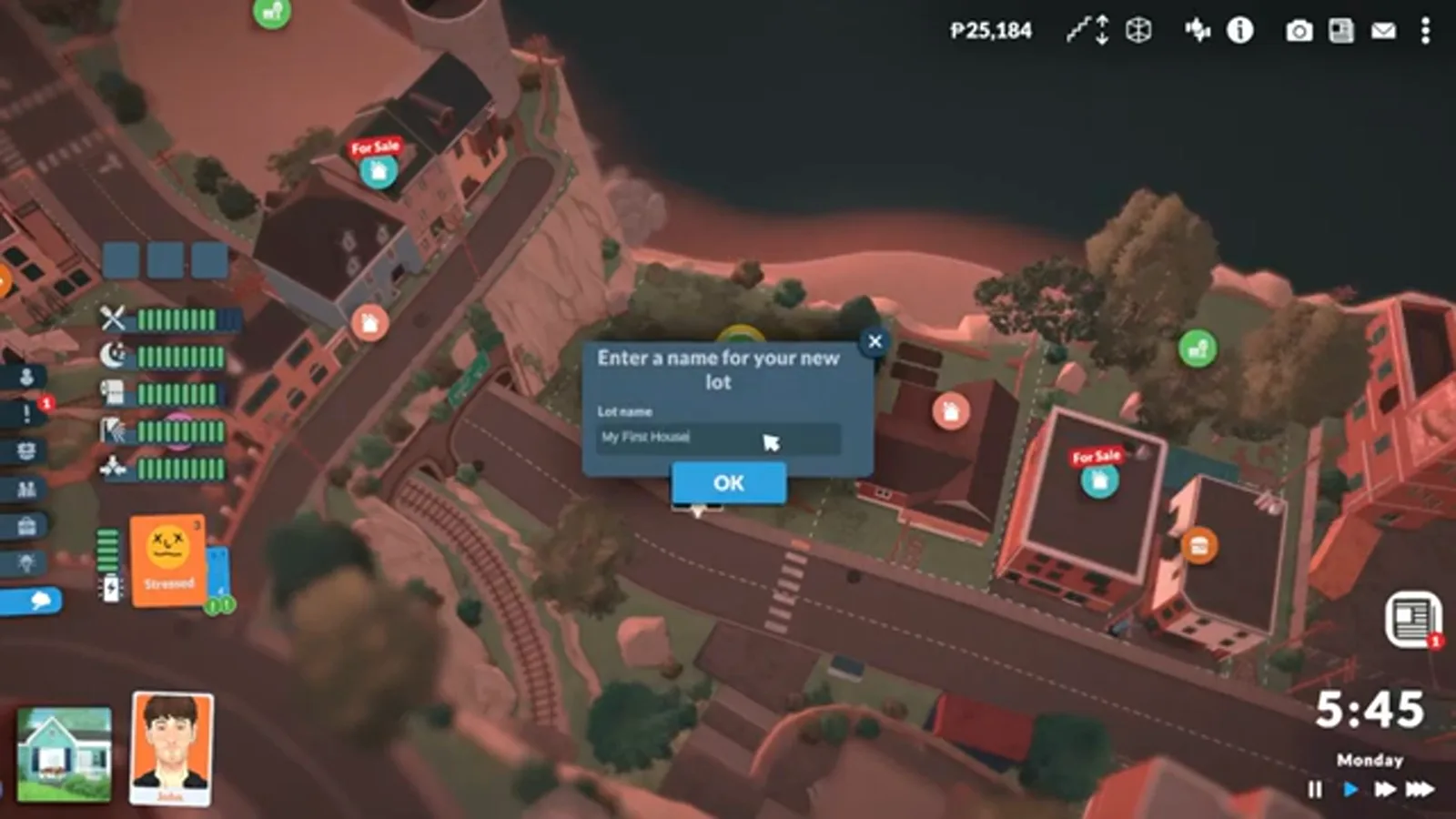
The duplicate is already a copy.Watch at 1:00 - 9
Pay for the plot, not the build
The confirm dialog shows the lot price minus what your household holds — you are buying land, and the copied build comes with it for free. Furnishings, swatches, terrain paint: everything in the library snapshot arrives intact.
Land is the only cost.Watch at 1:06 - 10
Confirm and walk your Para home
One confirmation later the duplicate stands on its new lot, identical down to the doormat. This is also exactly how Workshop downloads arrive — a subscribed build is a library entry someone else saved, and placing it works the same way.
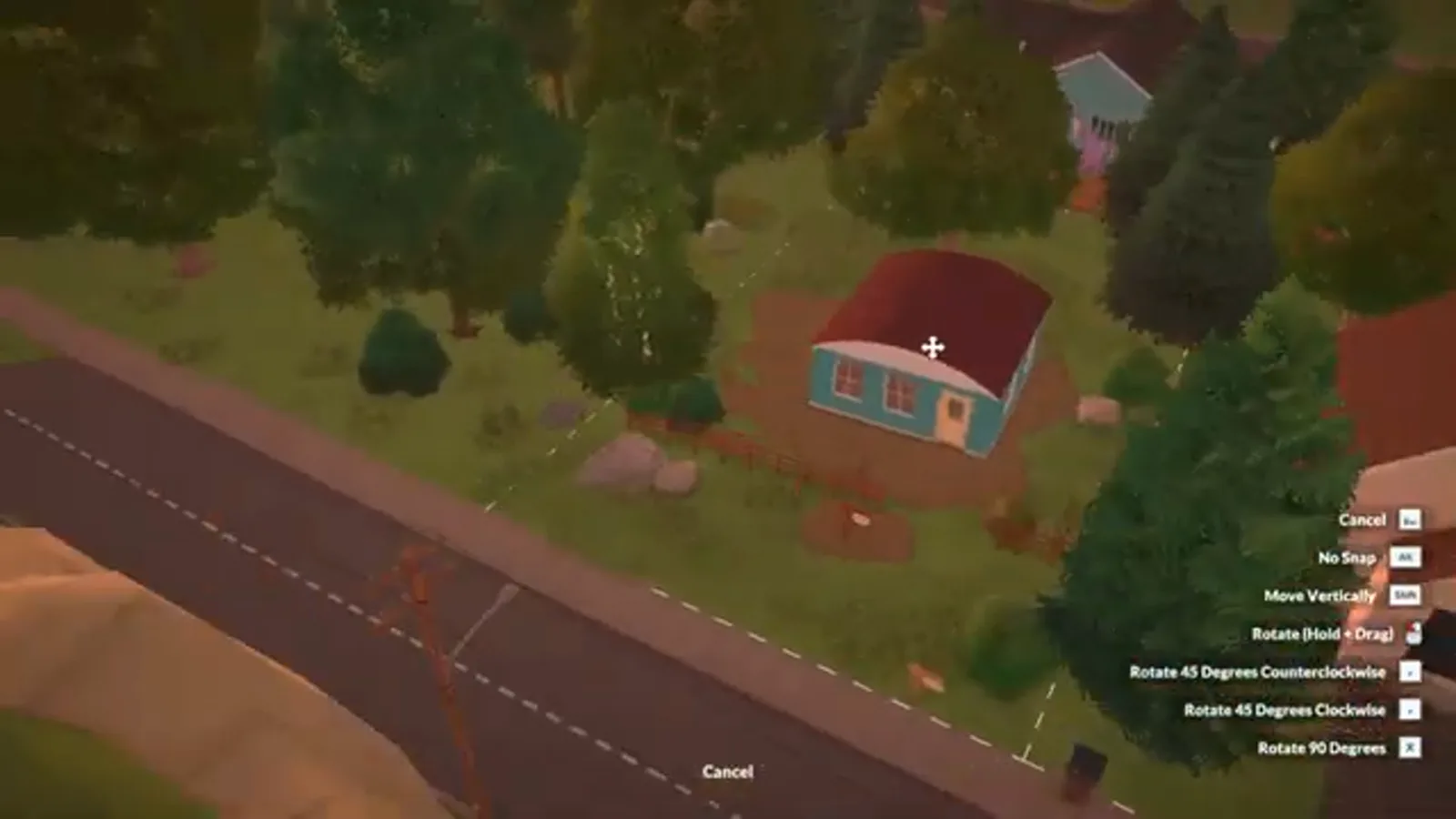
Same house, new address.Watch at 0:56
Duplicating an entire floor
Rooms have no copy-paste, but floors come close. Paralives' wiki documents it on the Build Mode page under "Upper floor assist": besides drawing upper walls with the snap-to-floor-below guides, "if the player wants to replicate an entire floor … it is also possible to simply create a duplicate." The sentence cites the developers' own construction write-up, so this is a real, shipped feature — not a mod.
What the button looks like in practice: in the only on-camera demonstration we could verify, the builder clicks the floor's entry on the build panel, hits the small copy control at the bottom of it, confirms "Duplicate", and the whole level — walls, doors, windows, paint — reappears one storey up, ready to drag around. A second creator's live reaction to discovering the same button ("you just blew my mind") is why we trust it is discoverable in normal play. One honesty note: that demonstration dates from launch month, so the control's exact position may have shifted — treat the flow as the lesson and your own build panel as the truth.
When it does not work — the "cannot duplicate floor" complaint — no official source documents the cause, so we won't invent one. What is verifiable: the feature duplicates from a complete floor, and the snap-based alternative (draw one wall, let the game suggest the rest) always remains. Back up your save before big structural copies; our save-backup guide takes thirty seconds.
The pipette and the colour clipboard
Two copy tools carry the everyday work even though no step image can show them from our sources. The pipette — the eyedropper beside the sledgehammer, bound to the I key — samples whatever it clicks: click a wall to lift its paint, a floor to lift its planking, an object to duplicate it outright. Beginners' tutorials demonstrate it as a three-click rhythm: sample, move, apply.
Colour has a clipboard instead. Open Style Creation on the item whose colour you love, select the hex code, and press Ctrl+C; open the target item, create a custom swatch, and press Ctrl+V. That is the whole workflow — the pipette cannot carry a colour between item types, which is exactly what the six-digit code is for. Both flows are demonstrated step by step in the tutorials credited below; their frames could not be licensed for this page, so the words carry them.
Copying FAQ
- Can you copy and paste a whole room in Paralives?
- Not as one action. There is no room-selection or room-paste tool documented anywhere — official or community. The routes that exist: duplicate an entire floor (the wiki-documented button covered above), duplicate objects individually with the pipette, or save the house to the Lot Library and place it as a copy. Even launch-era pros were asking for the missing tool — one popular first-build video spends a full minute wishing for exactly this.
- Why can't I duplicate a floor?
- Honestly: nobody has published a verified cause. The wiki confirms the feature exists, and a launch-month demonstration shows it working, but failure cases — the "cannot duplicate floor" searches — have no official explanation. What we can say: the duplicate applies to a floor of the building, so make sure you are clicking the floor's entry rather than a wall or object, and that your game is current. If it still refuses, the snap-to-floor-below drawing method always works as the manual fallback.
- How do I copy my house to another save file or lot?
- The Lot Library, exactly as the final six steps above show it: save the lot once from its town-map panel, then place it from the library anywhere — same town, new save, whatever. For sharing beyond your own saves, the Steam Workshop upload flow hands the same snapshot to other players. Both routes copy the building, the furniture and the terrain paint.
- Does the pipette copy objects or just colours?
- Both, with one boundary. Click a wall or floor and it samples that finish for re-painting; click an object and it duplicates the object itself — the beginner tutorial in this guide copies furniture with it directly. The boundary: it cannot carry a colour from one item type onto another, which is exactly what the hex-code workflow in Group 2 is for.
- Is there a room template or prefab feature?
- No — nothing official documents saved room templates. The closest behaviours: the Lot Library (whole-lot snapshots you place as copies), duplicated floors for repeated storeys, and Workshop builds as other people's prefabs. A true room-template system would be new functionality, and nothing in the patch notes or roadmap has announced one.
Keep building
Move-objects & placement tricks
Grab, clone and free-place anything — the duplication page's natural next step.
Blueprints & floor plans
Copying starts with a plan: real floor plans traced in build mode.
Steam Workshop guide
Where other people's library entries come from — subscribing, placing, and load order.
Moving & selling houses
The lot panel's other powers: move, sell and split, step by step.
Build mode tutorial
New to the tools entirely? Start here, then come back and copy everything.
All build guides
Every walkthrough and technique page on the site, one shelf.