
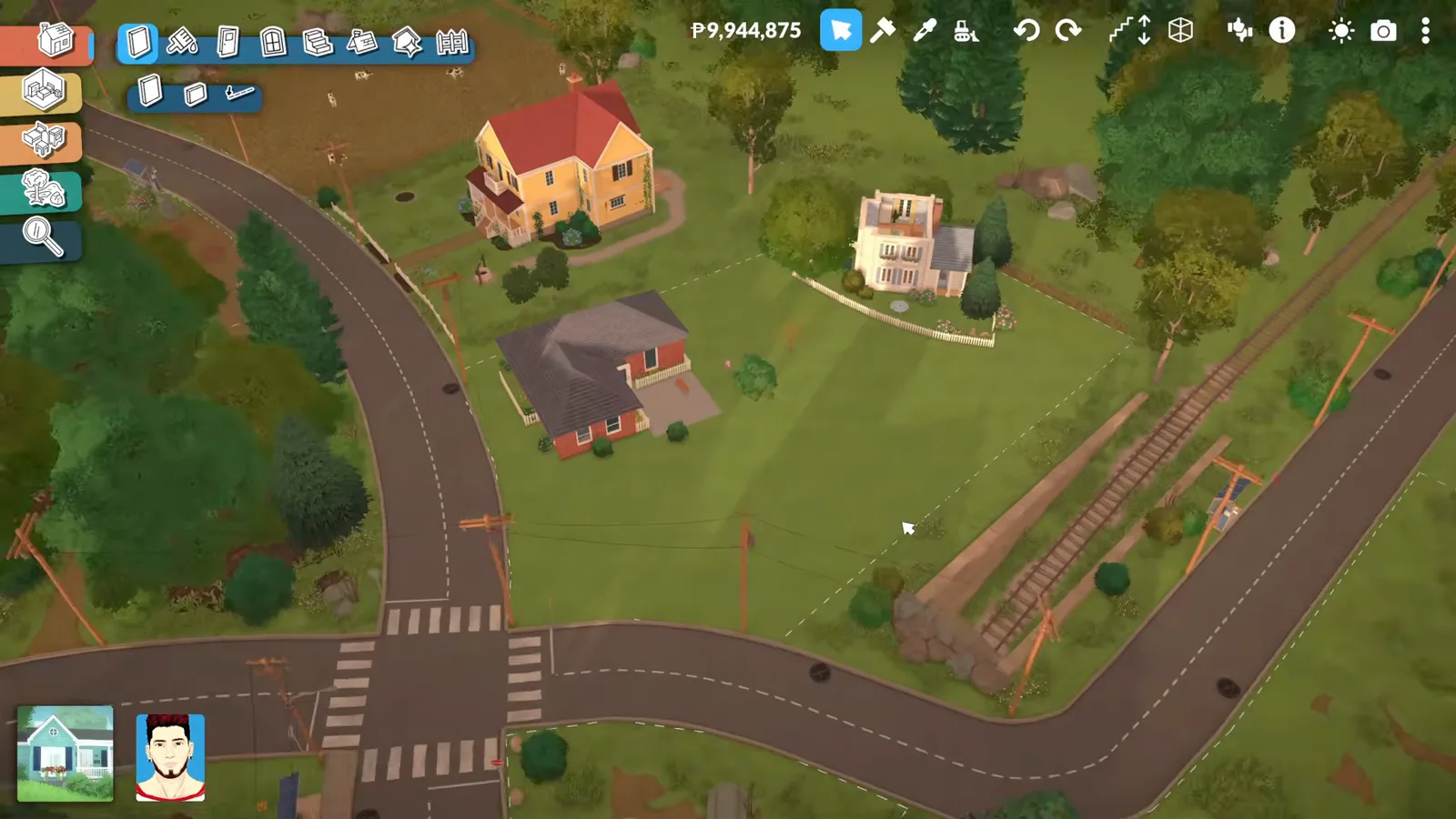
The short version
There is no download button in Paralives because there doesn't need to be: subscribing on Steam ships the lot straight into your game. The real work is preparing a place for it.
- Subscribe on the house's Steam Workshop page — the lot arrives in your game automatically.
- It sits in the Lot Library under the Installed from Steam Workshop filter, marked with a cloud icon.
- Placement needs an empty plot: buy one from the town map's For Sale signs first.
- Zoom out until the green house icon appears, choose place a lot from the library, then Place on lot.
- The Lot Placement stack rotates 45°, drops snapping with Alt and shifts the whole lot vertically with Shift.
- Placing over an existing build stacks the two — bulldoze first; Ctrl+Z undoes a misplaced lot.
Steps 1–4
Find it and subscribe
Steam does the carrying: one subscribe click moves a lot from the Workshop to your game with no manual download anywhere.
- 1
Start from the Lots tab
Paralives' main menu splits My Mods, Lots, Households and Control Panel. The Lots tab opens the Lot Library, and Browse for Lots on Steam Workshop jumps straight to the Workshop's lot section — you can also reach it from Steam without launching the game.
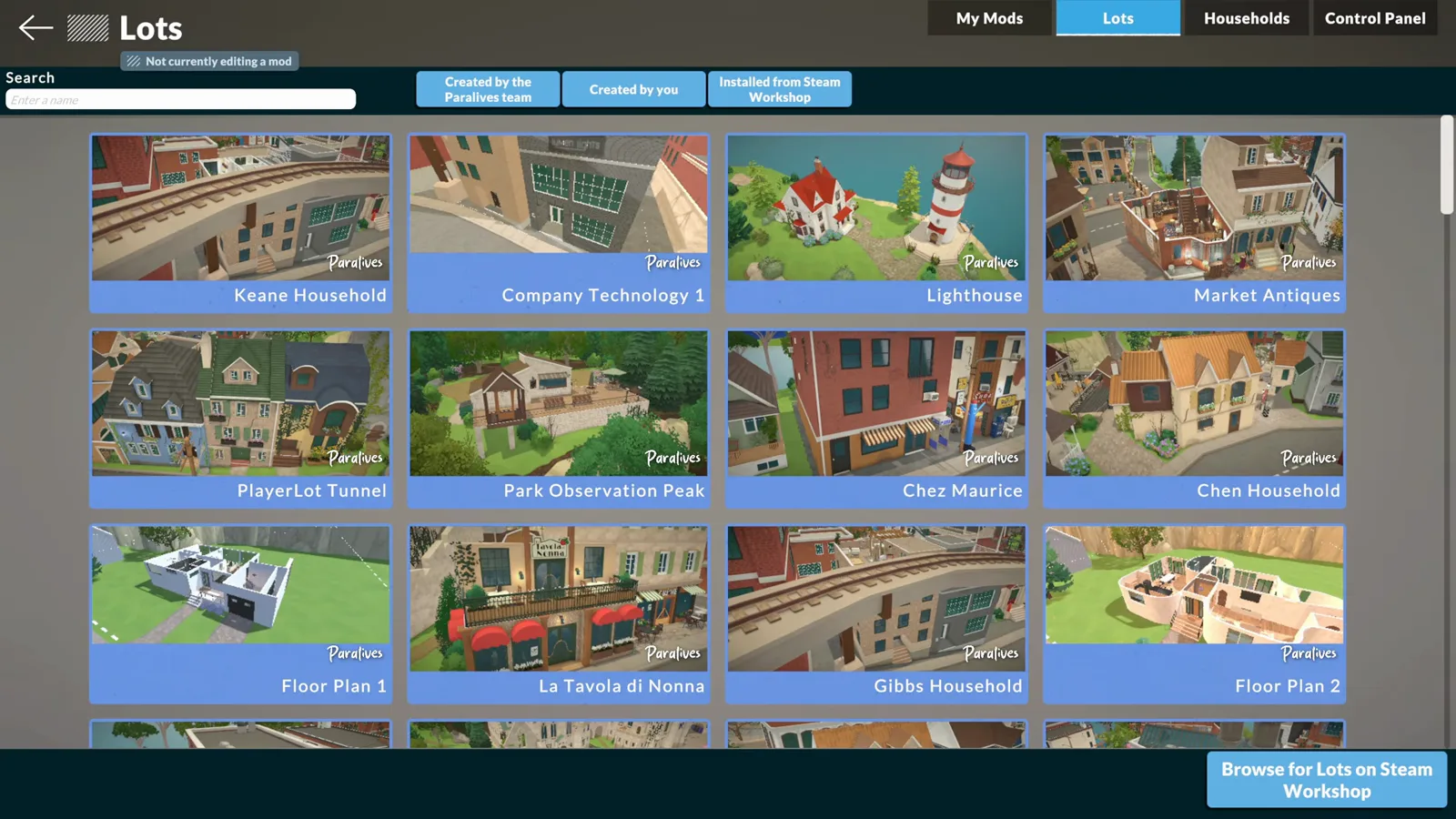
The library works both ways: prebuilt lots out, Workshop lots in.Watch at 0:12 - 2
Browse the Houses category
The Workshop's Paralives hub lists houses with preview images, ratings and sorting by most recent or most popular. The Houses category filters out households and modpacks so you only see buildable lots.
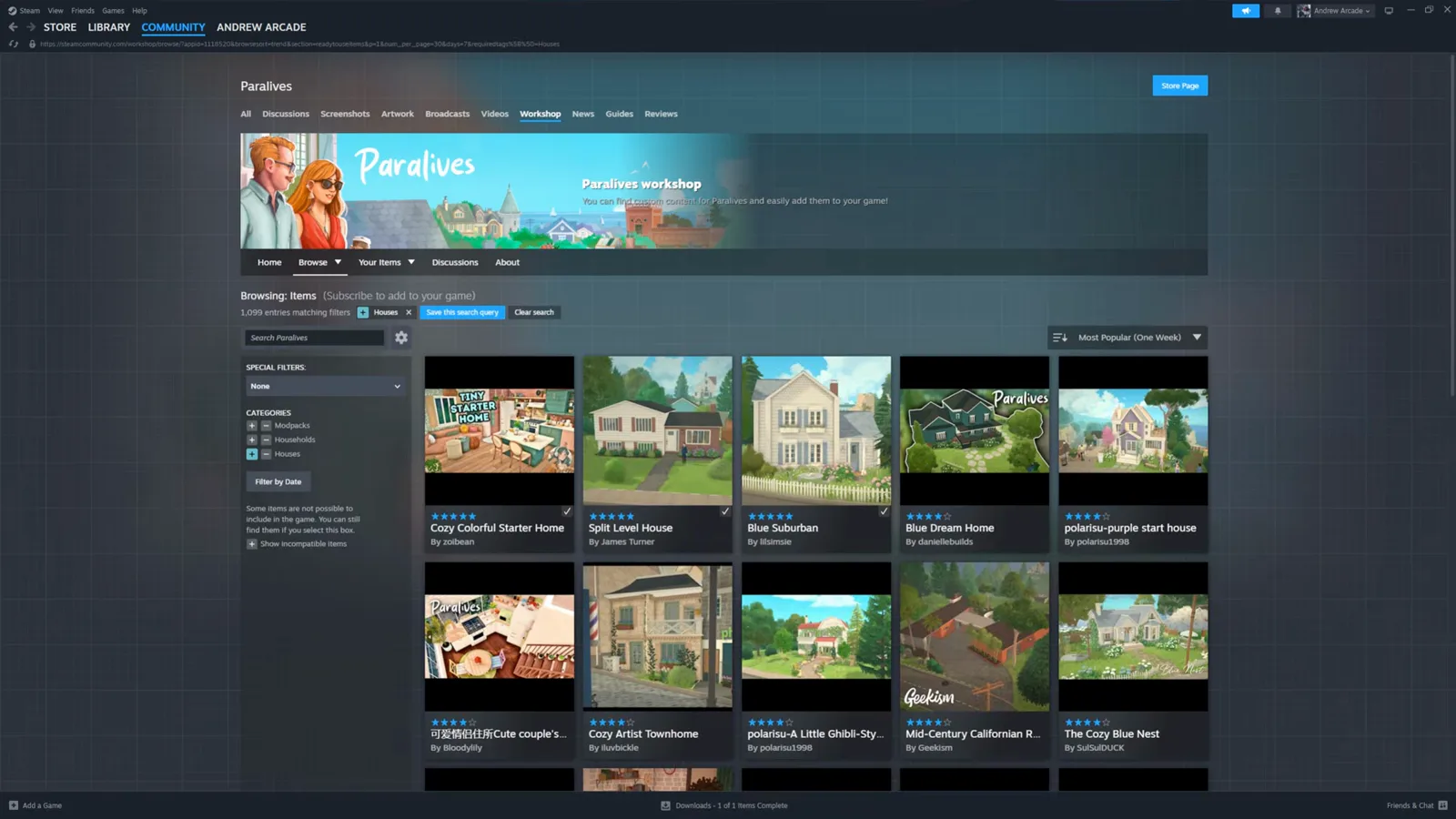
Preview images do the window shopping.Watch at 0:31 - 3
Subscribe — that is the download
On a house's page, the green plus (Subscribe) adds it to your game. There is no separate download step; the subscription ships the lot the next time Paralives loads.
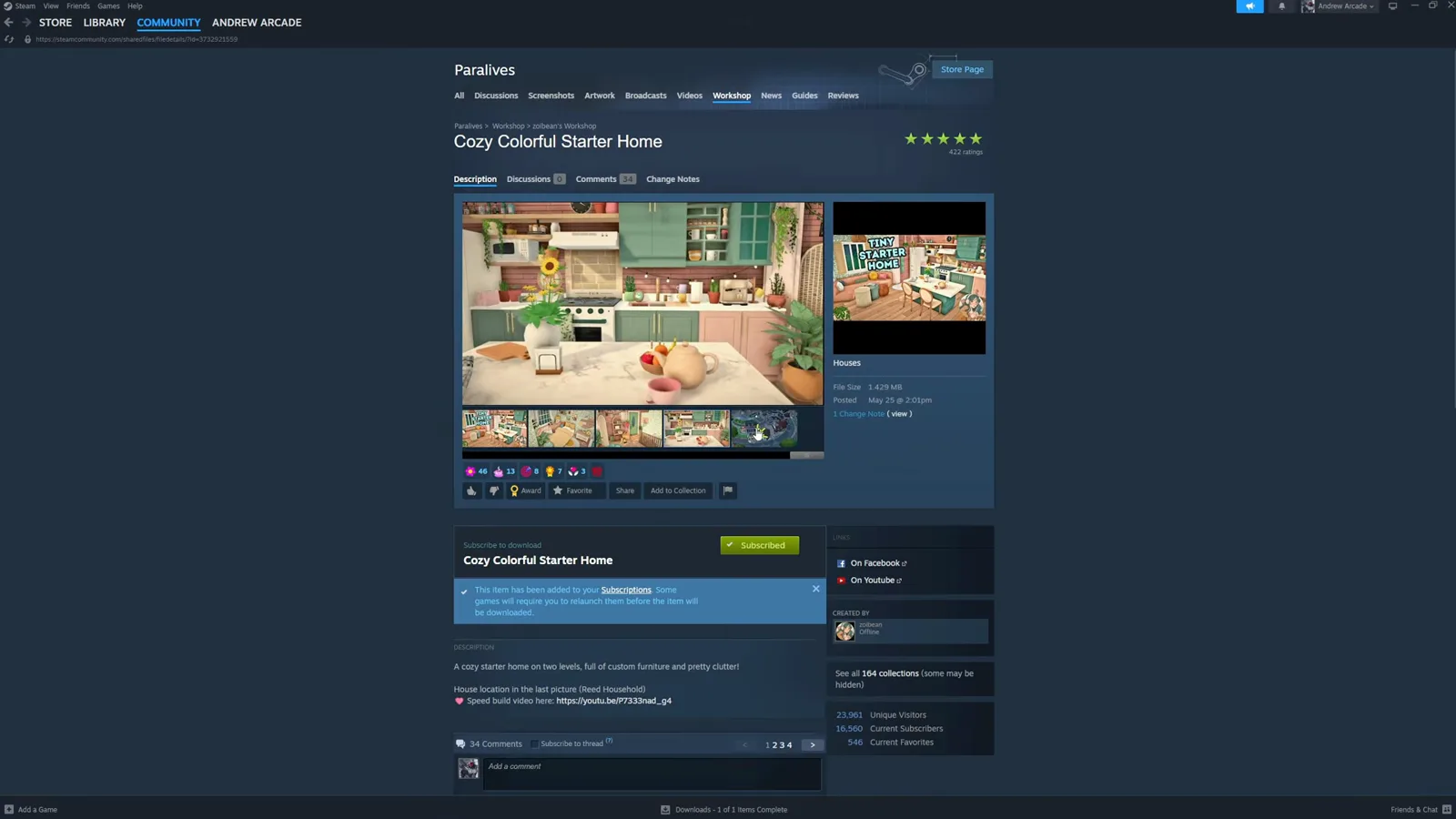
One green button stands between you and the house.Watch at 0:59 - 4
Confirm it landed in your library
Back in the main menu, the Lot Library's Installed from Steam Workshop filter shows your new lots with cloud icons — here, four downloads sitting beside the Paralives team's prebuilt lots.
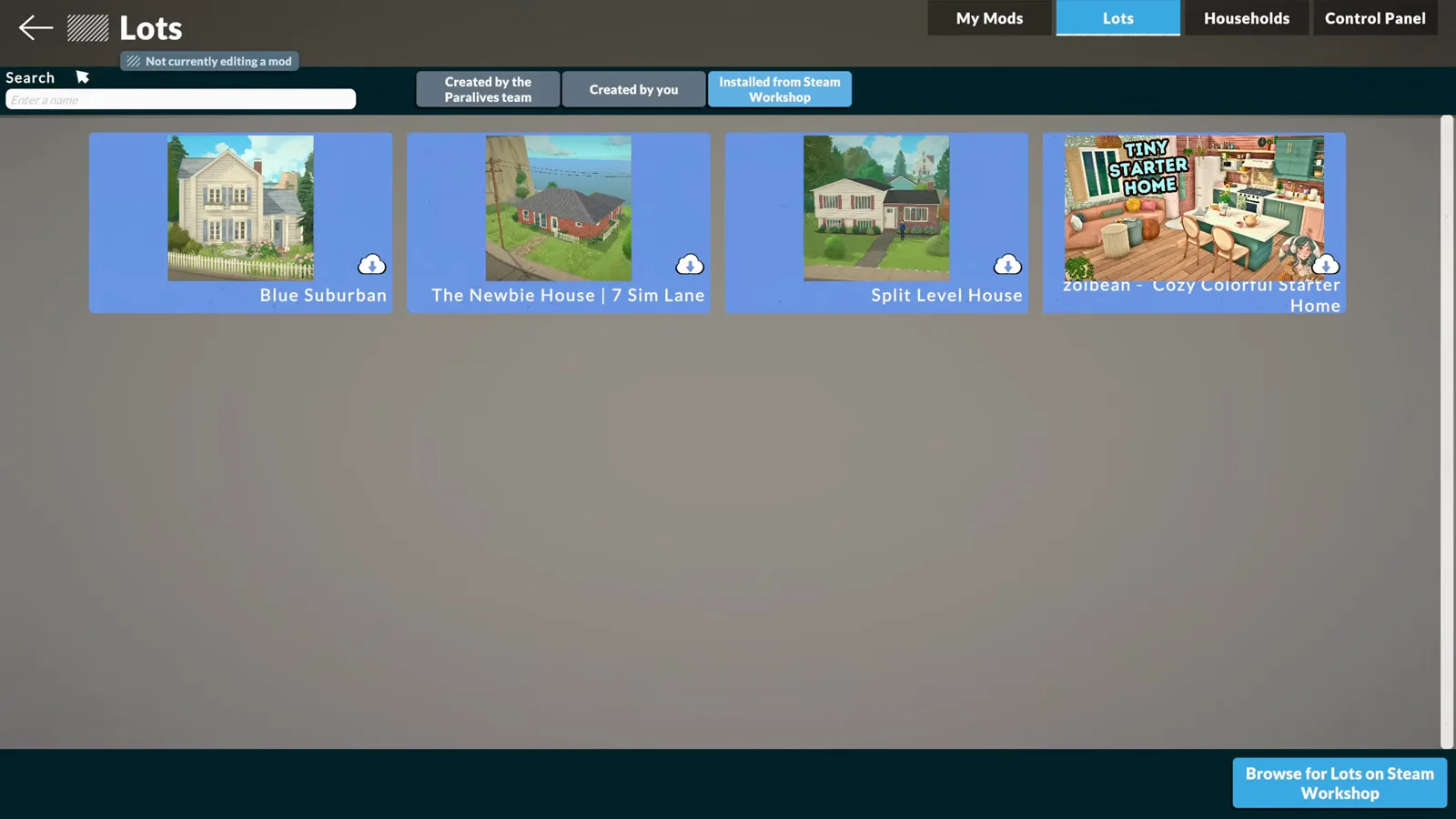
Four arrivals, four cloud icons.Watch at 1:12
Steps 5–6
Prepare the land
A downloaded house needs somewhere to go — an empty plot you own, and enough Paradimes to cover placement.
- 5
Top up the balance if you like
Placing a lot costs Paradimes. The Cheat Commands panel lists the money codes — PIGGYBANK adds 1,000, MAKEITRAIN 10,000 and JACKPOT 50,000 — and SETMONEY sets an exact balance when you want a tidy number to place with.
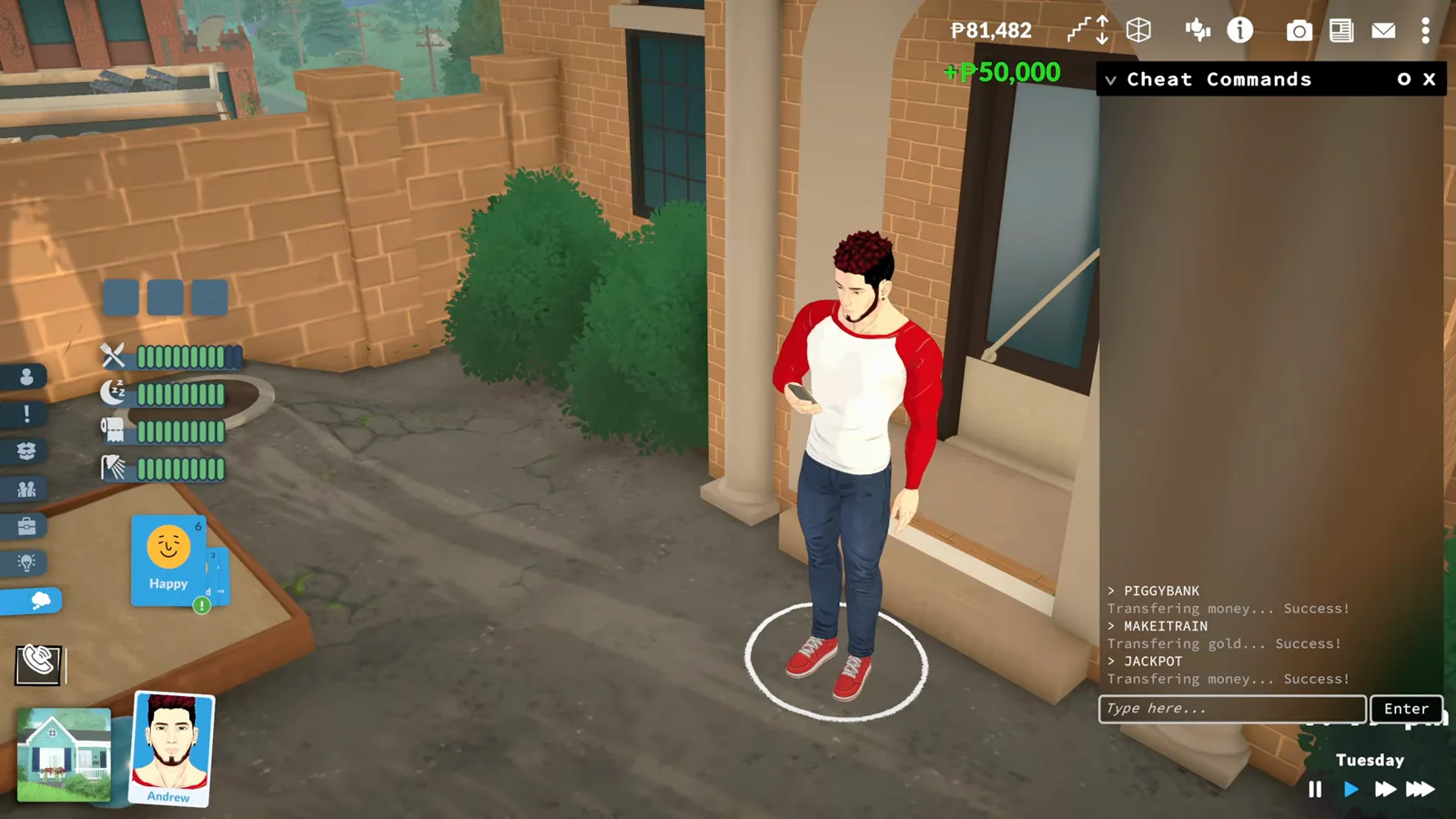
The panel confirms each code with a green success tick.Watch at 1:40 - 6
Buy an empty lot on the map
On the town map, pick a For Sale plot and confirm Buy this lot? — the dialog spells out the price and your remaining balance before you commit, so there are no surprises after the click.
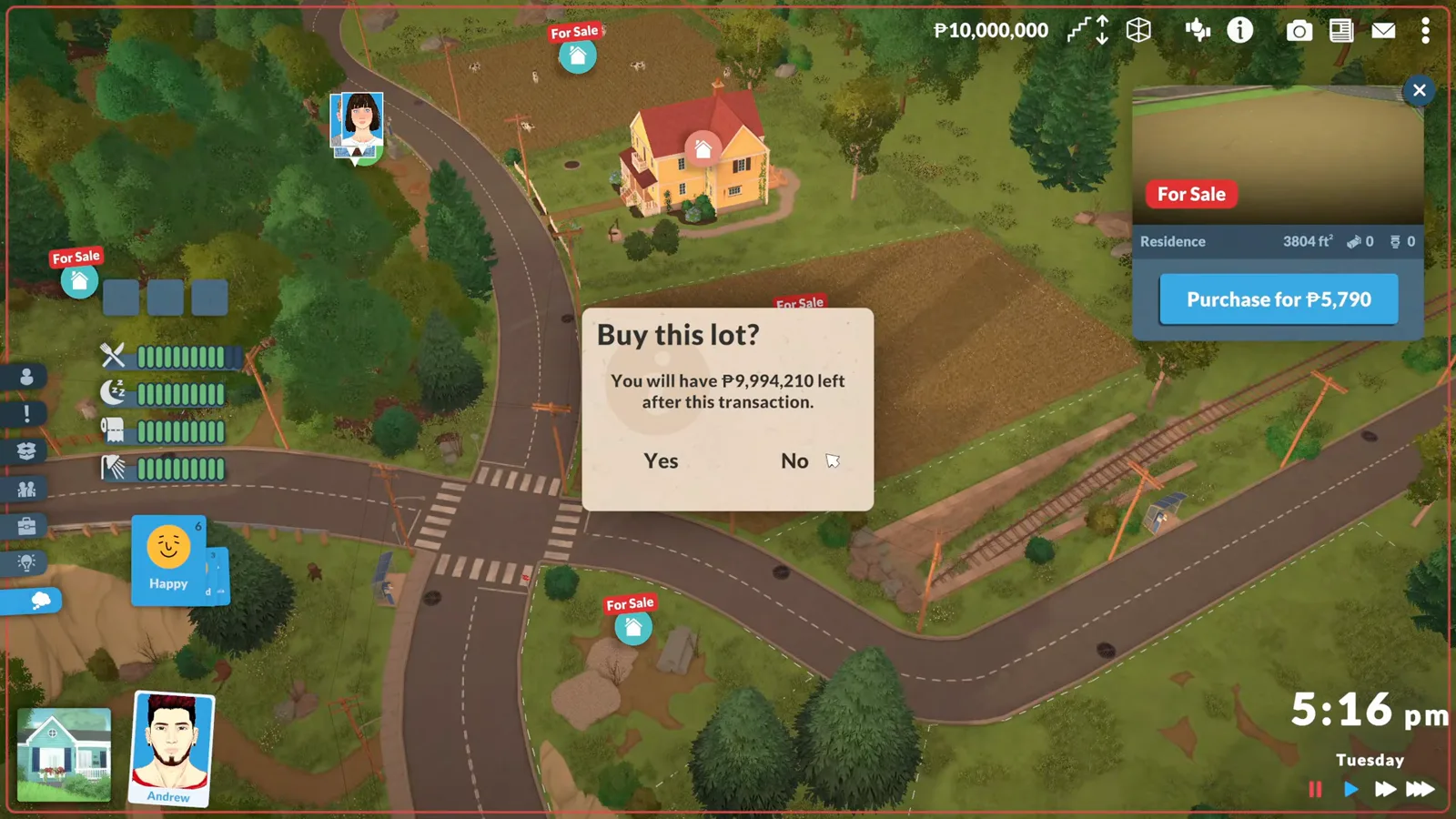
The dialog does the arithmetic for you.Watch at 2:28
Steps 7–10
Bring the house in
One green icon opens the library on the map; Lot Placement then rotates, unsnaps and levels the lot until it sits like it grew there.
- 7
Zoom out for the green icon
Zoom the camera out until the green house icon appears over the empty lot and click place a lot from the library — the same entry point the upload guide saves lots into, now working in your favour.
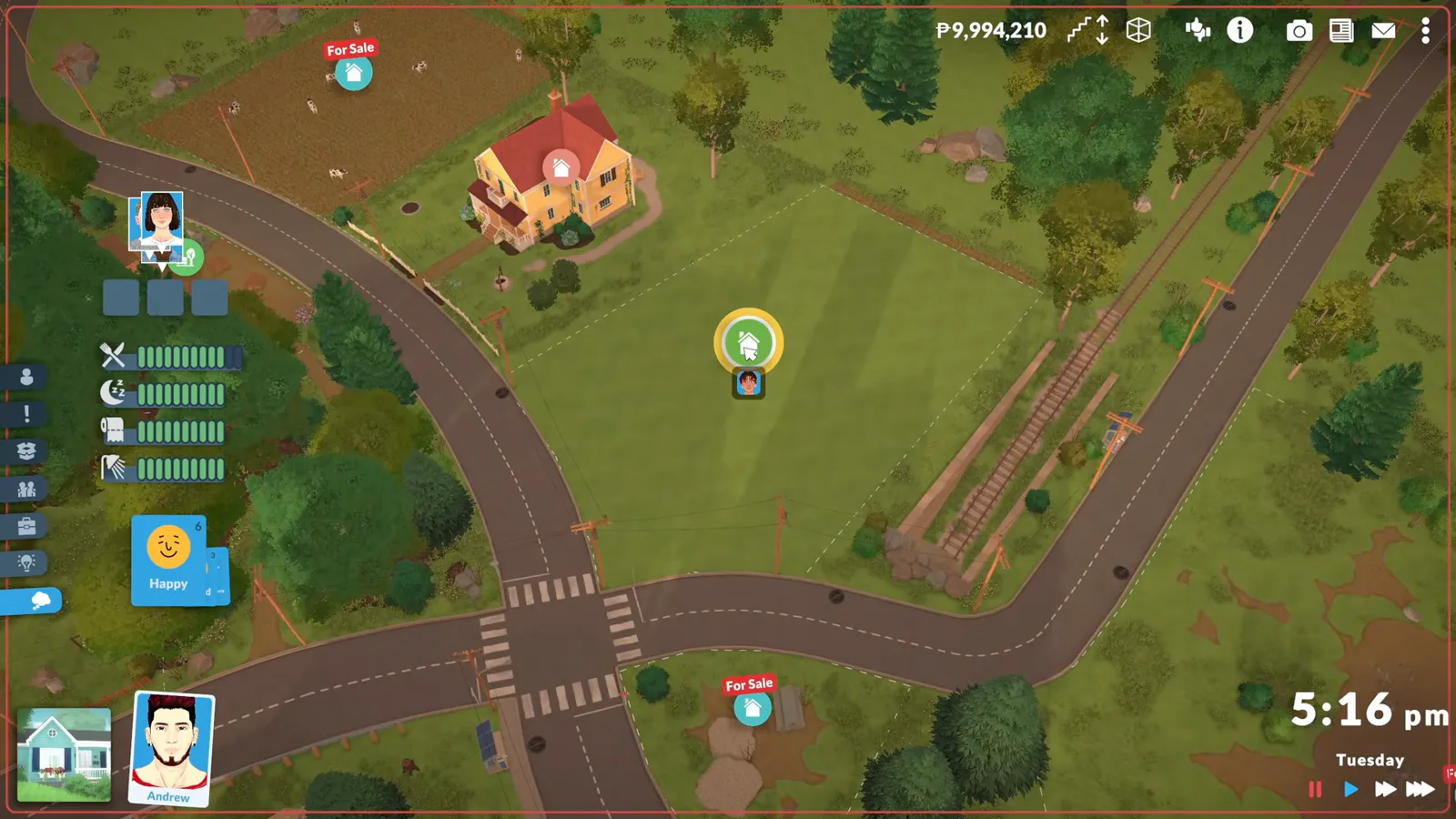
The same icon that saves lots also places them.Watch at 3:02 - 8
Pick the downloaded house
Filter to Installed from Steam Workshop, select the house — the bottom bar shows Place on lot, its Paradimes price, the area and the creator's name — and confirm.
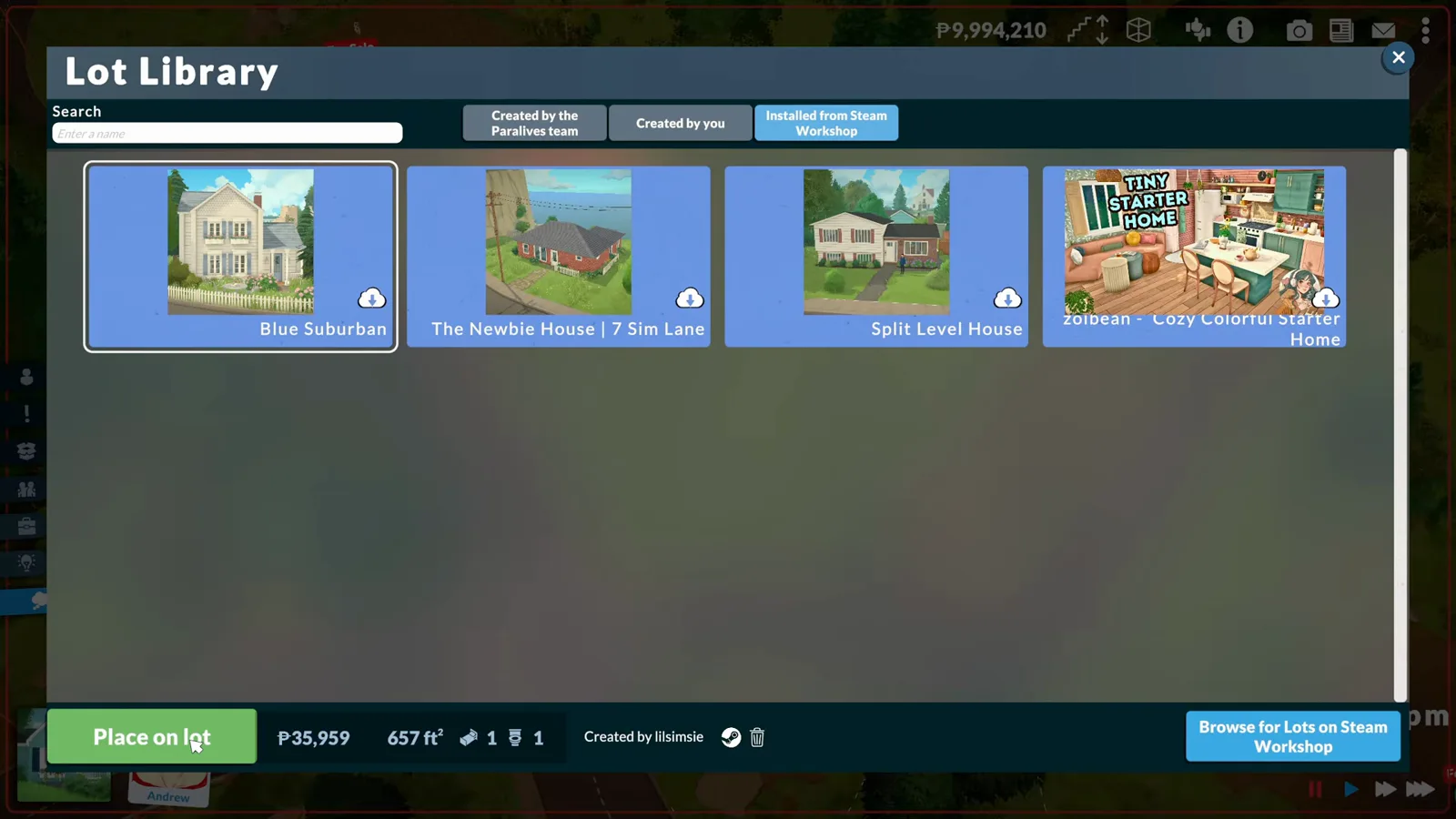
Creator credit rides along on the bottom bar.Watch at 3:22 - 9
Steer it with Lot Placement
The lot drops in placement mode: the side stack rotates 45° either way, No Snap (Alt) frees it from the grid and Move Vertically (Shift) raises or lowers the whole lot to meet the street.
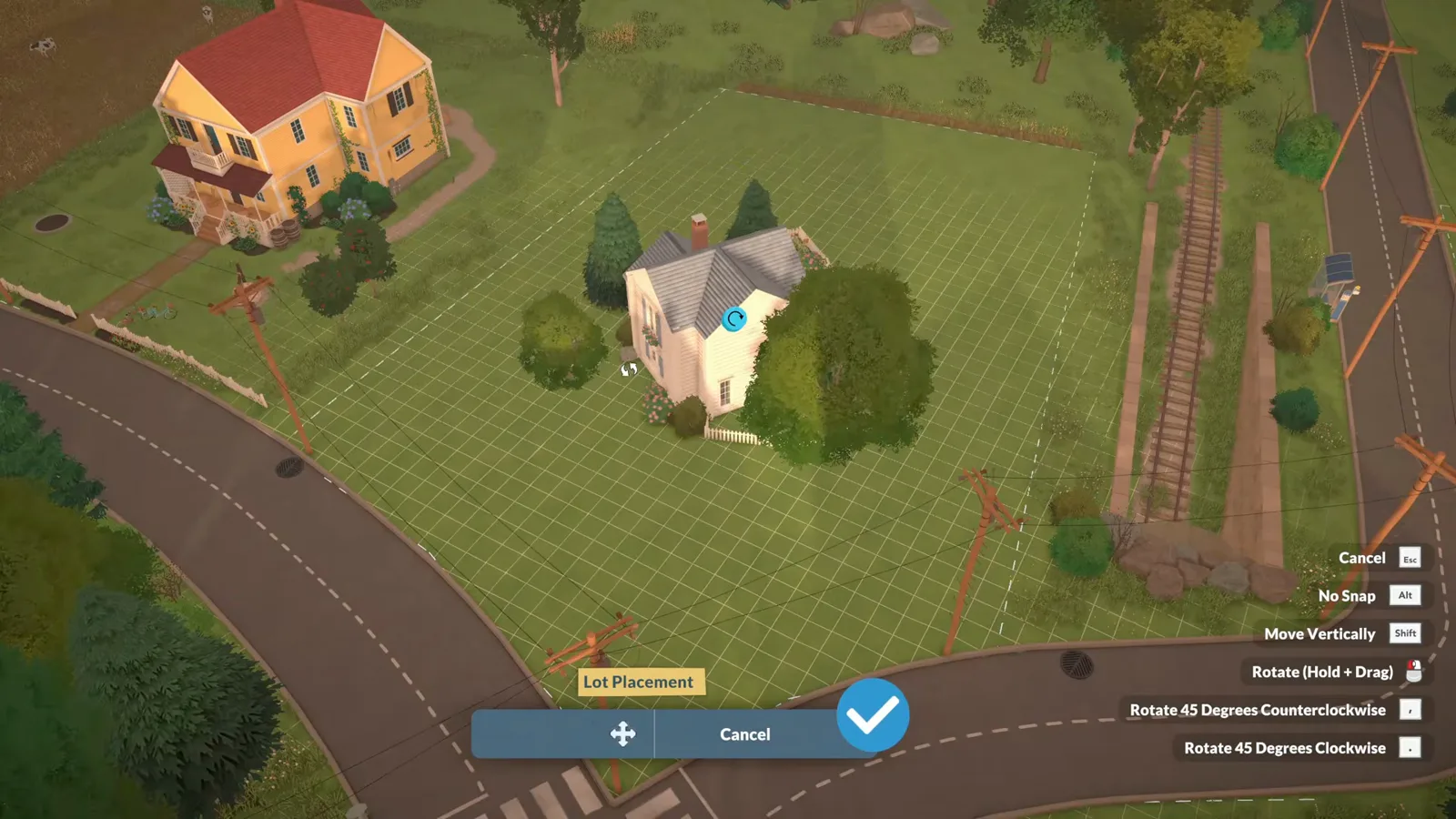
The whole lot moves as one block — furniture included.Watch at 3:30 - 10
Confirm and repeat
The confirmed lot settles onto the plot and the neighbourhood reads as a street of downloaded homes. Several lots can be placed along the same road in one session.
One session, a whole street restocked.Watch at 4:34
Steps 11–12
Money trouble and following creators
Two loose ends the video handles on the way: what to do when the balance runs short, and how to see more from a builder you like.
- 11
When it says Not enough money!
A green Not enough money! strip means the active household cannot cover the lot's price — run SETMONEY or JACKPOT from the cheat panel, or switch to a wealthier household before placing.
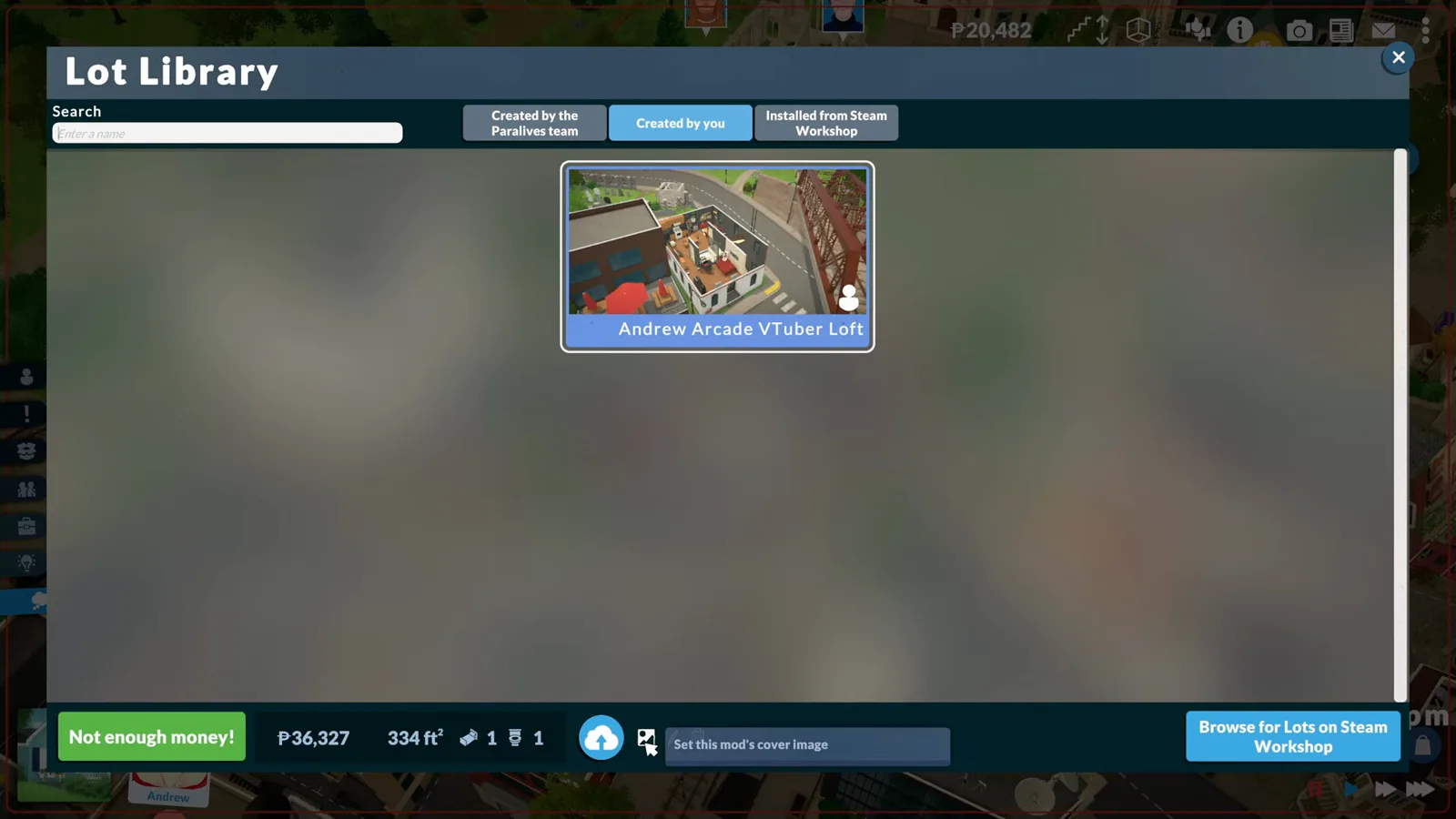
The lot stays in the library; only the placement is blocked.Watch at 7:40 - 12
Follow the builders you like
The Steam icon beside a creator's name opens their Workshop page — the video follows James Turner's Split Level House — and their new uploads then surface at the top of the in-game Workshop view.
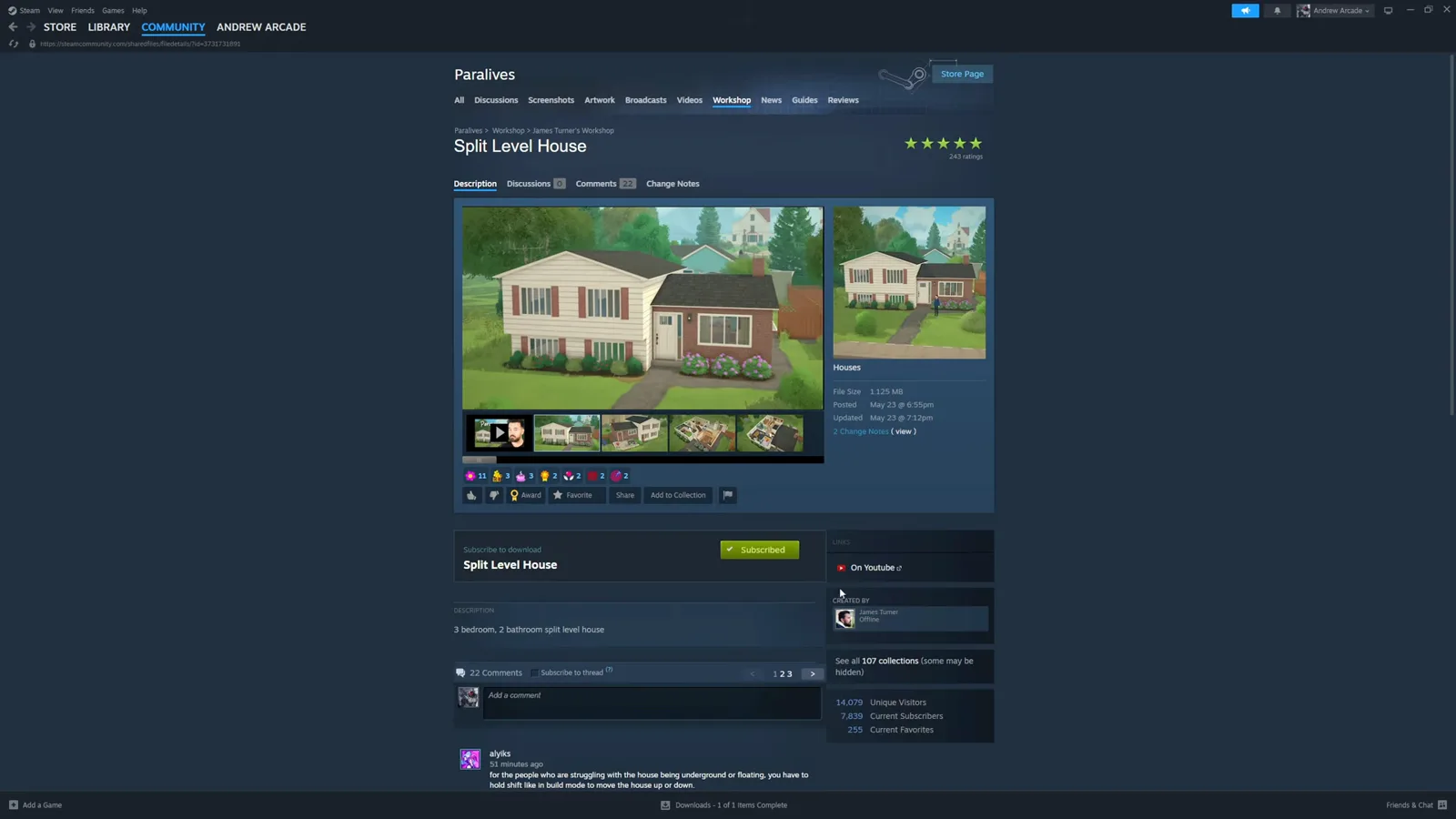
Follow once, see every future build first.Watch at 9:45
Placing, moving, remodelling — what is what
Placing a downloaded lot is not moving your own house. Moving an owned home — Move lot, Sell this lot, rotating or raising it on its plot — lives in the how-to-move-house guide and never touches the Workshop.
Once a downloaded lot is placed, it is yours: the house can be remodelled in build mode, bulldozed, or sold like any other. The one habit worth keeping from the video is bulldozing a plot before placing — placing over an occupied lot stacks the new build on top of the old one.
The road runs the other way too. When your own builds are ready to travel, the upload guide walks the save-to-library, cover-image and listing flow that ends with your house on the same Workshop shelf.
Downloading Paralives houses — FAQ
- Can you download houses in Paralives?
- Yes — it is built in. Houses and households are shared through the Steam Workshop: subscribe on a house's page and it appears in your in-game Lot Library under Installed from Steam Workshop, ready to place on any empty plot you own. No mods, no file paths, no manual imports.
- Do downloaded houses cost money?
- Workshop lots are free to download; a Steam account is the only requirement. What costs Paradimes is buying the empty plot and placing the lot on it — the Place on lot bar shows that price before you confirm, separate from anything on the Steam side.
- Why did my downloaded house place on top of another building?
- Because the plot was not empty. Placing onto an occupied lot stacks the new lot's objects over whatever is there, exactly as the source video demonstrates. The reliable fix: bulldoze the plot or buy a fresh one, zoom out, and place again — Ctrl+Z also undoes a misplacement.
- What is the biggest lot you can place?
- The game's own error dialog reads: This created lot is too big! The maximum allowed lot size in Paralives is 1024. The popup flashes for under a second in the source video, which is why it is quoted here rather than shown as a step image — but the limit it states is the game's, not the creator's.
- Why did my lot land lower than the road?
- Paralives' world has real elevation, and a downloaded lot drops in at the height it was authored at. Hold Shift in Lot Placement to move the whole lot vertically until it lines up with the street — the video nudges a household lot back up to the main level exactly this way.
- How do I get money to place downloaded houses?
- Open the Cheat Commands panel with Ctrl+F1 (Cmd+F1 on Mac) and run the money codes: PIGGYBANK grants 1,000 Paradimes, MAKEITRAIN 10,000, JACKPOT 50,000, SETMONEY sets an exact balance and CLEARBILLS wipes pending bills. The full re-verified list lives in the site's money cheats guide.
Related guides
Upload & share your house
The other direction: save your lot, set a cover and publish it to the same Workshop shelf.
Install mods
Script and content mods ride the same Workshop but need the Mods tab, not Lots.
How to move house
Move lot, sell or rotate a home you already own — no Workshop involved.
Money cheats
Every money code, re-verified after each patch, with the console opener for Mac.
Blueprints
Copy builds between your own lots without the Workshop at all.
House ideas
Browsable finished builds — many of them downloadable from this page's shelf.