

Quick answer — 3 ways to move in Paralives
Open Town Map (M) → Pick an available lot to buy → Click your current home lot → Choose 'Move lot'. The whole family relocates.
Start the walkthroughZoom out to Town Map (M) → Click your home lot → Choose 'Sell this lot'. You receive full cash value immediately.
How do you sell your house in Paralives?Buy destination lot first → Click home lot on Map → Choose 'Split Household' → Move the Paras leaving to the right side. They become a separate household.
Manage households — merge, split, switch and renameTL;DR — moving in one paragraph
Press M (or zoom out with the mouse wheel), buy the destination lot with 'Purchase Lot', then open your current home lot's menu and choose 'Move lot' — the whole family relocates with skills, careers, relationships and savings intact. Moving one Para out is 'Split Household' instead, and selling the old lot works without buying anything first. If the destination costs more than you have, PIGGYBANK or MAKEITRAIN tops you up.
- Town map → 'Move lot' = the whole family relocates onto a lot you already own
- Town map → 'Split Household' = chosen Paras leave as their own household
- Keepables go in the household inventory — 'Sell all walls and items on lot' liquidates what stays
- PIGGYBANK or MAKEITRAIN covers a destination lot you can't quite afford
How to Move House in Paralives
- 1
Open the town map
Press M or zoom out with the mouse wheel until all of Melino is visible. Moved-in households show a green house icon; homes for sale are marked with a light blue icon and the words 'For Sale'. Every move runs from this view — neither build mode nor a Para's phone has a move option.
- 2
Buy the destination lot
Click a home that is for sale — an empty lot or a fully built, furnished one; Melino's residential lots include both. Confirm the purchase and the popup shows how many Paradimes you will have left. You can own two lots at once, so there is no need to sell the old house before buying.
- 3
Open your current home lot's menu
Still on the town map, click the lot your household lives on. This menu is the household's management hub — members, square footage, beds and baths — plus the options Move lot, Split Household, the two sell options and saving or placing lots from the Library.
- 4
Choose 'Move lot' to relocate the whole family
Move lot shifts your home lot — house and household — onto the destination bought in step 2. One rule to know: a lot can only be moved onto another lot you already own, which is why the purchase comes first. The family keeps every skill, career, relationship and Paradime through the move.
- 5
Moving one Para out? Use 'Split Household' instead
Split Household only appears when more than one Para lives on the lot. Its member menu lists everyone with their Paradimes: move the departing Paras to the right side, optionally set a 'Transfer Money' amount — zero is a viable choice — and confirm with the tick mark. The new household needs at least one teen or older Para; babies, toddlers and children cannot live alone.
- 6
Sort out furniture and funds
What furniture does automatically during Move lot is not officially documented, so do not gamble with items you care about: store keepables in the household inventory in build mode, or save the whole lot to the Library as a backup and place it on the new land. If the destination was out of budget, the console money cheats PIGGYBANK and MAKEITRAIN close the gap.
- 7
Sell the old lot or keep both
After buying you own two lots. Keep the old one as a second property, or select it on the town map and click the 'Sell this lot for …' option — its cash value lands in the household balance immediately, and you never needed a new purchase lined up first. Selling a lot does not delete the household.
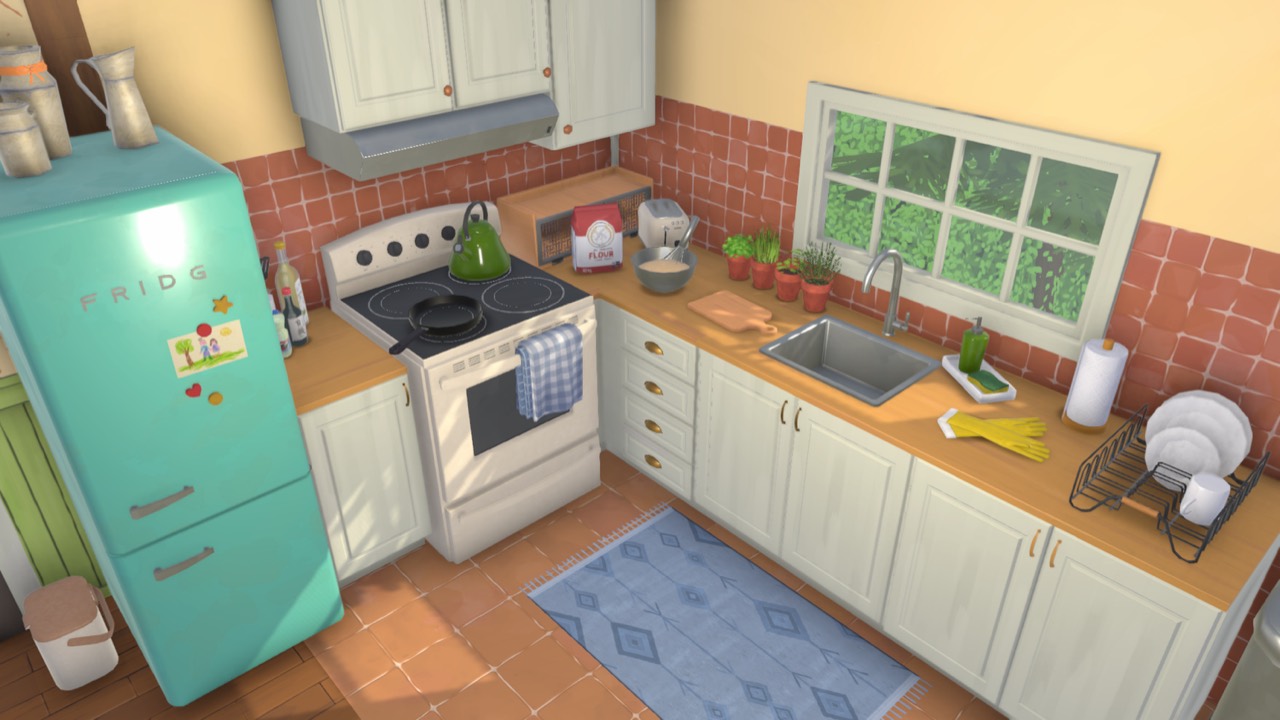
Move a whole house to a new lot
The town map moves houses as well as families. Every residential lot in Melino can be purchased — an empty lot to build on, or a fully built, furnished home that is ready to move into the moment the sale closes. That second option is the closest thing to buying a finished house: pay, move in, and not one wall needs placing.
- 1
Open the town map
Zoom out of Live Mode until the whole town is visible, or press the town-map key. Lots for sale are marked on the map; occupied home lots show the family living there.
Open the town mapM - 2
Buy the destination lot
Click a lot for sale and confirm the purchase with 'Buy lot'. Empty lots give you a blank canvas; furnished homes hand over a finished house.
- 3
Move the household in
Click your current home lot and choose 'Move lot'. The whole family relocates at once — skills, careers, relationships and savings all travel. You can own two lots at once, so selling the old house is optional.
What travels with the household: skills, careers, relationships and savings. What is not documented: automatic furniture transfer — use the household inventory or the Library for items you care about.
How to rotate a house in Paralives
Early Access has no one-click 'rotate whole house' tool — rotation applies to whatever you are placing, not to a finished building. While placing furniture or objects you can turn them freely before setting them down, and walls, half-walls and fences draw at any angle off the grid, so a new extension can meet the old house at exactly the angle you want.
Rotation controls while placing:
XRotate 90°,Rotate 45° counter-clockwise.Rotate 45° clockwiseRight-click + dragRotate freely by draggingPlayers report saving a finished build to the Library and placing it again facing a different way. Whether a saved house can be rotated during placement has no official documentation — treat it as a community workaround, not a feature.
How to raise a house in Paralives
There is no single 'raise house' button either — raised houses, split levels and stilt builds come from four tools that each lift one part at a time:
- Lift what you are placing
- Hold the vertical-movement modifier while placing to raise the item off the ground or sink it lower — furniture, clutter, anything object-shaped.
- Resize wall height
- Wall height is resizable — rooms sit taller or shorter without touching the floor plan.
- Add platforms and split levels
- Any floor of a building can have platforms or split levels of any height, and stairs resize themselves to reach them.
- Raise the terrain
- The terrain tools raise, lower and flatten the ground — building on a raised pad is the closest the official tools get to lifting a whole house.
Shift (hold)No official source describes elevating an existing build as a single unit. Community tutorials raise a house by building a platform or foundation under it section by section — a workaround, not a documented feature.
How to sell your house in Paralives
Selling happens on the town map, not in build mode — and you do not need a new lot lined up first.
- 1
Open the town map
Zoom out of Live Mode until all of Melino is visible.
Open the town mapM - 2
Click your home lot
The lot menu opens with everything the household can do to its own lot.
- 3
Choose 'Sell this lot'
The lot's cash value lands in the household balance immediately. The family stays playable with skills, careers and savings intact — free to buy an empty lot, move into a furnished one, or start the next build from scratch.
Selling the lot is not the same as selling stuff: individual furniture sells in build mode with the Sell tool, and its value returns to household funds. Sell the selected objectDelete
Place a saved house from the Library
The Library is the game's content-level storage, separate from save files: anything saved there survives starting a brand-new save. That makes it the cleanest way to reuse a house — in the same town, in a second save file, or handed to another family.
- 1
Save the house to the Library
In build mode, save the lot to your Library. Households save the same way — since patch 0.1.3, both work as content-level backups you can use in future save files.
- 2
Pick it from the lot library menu
On the destination lot, open the lot library menu and choose the saved build. Official collab houses live here too — the Unpacking-inspired home arrived in this menu in patch 0.1.4.
- 3
Place it within your lot's bounds
A saved lot places onto your current lot like a stamp. One hard rule from patch 0.1.6: a library lot bigger than your actual lot space will not place — shrink the footprint or pick a bigger lot.
House disappeared, floating, or counted as outdoor?
Searches for a 'Paralives house disappeared' or a 'floating house' usually trace back to one of three scenarios. None of them is an officially documented bug class — below, what the patch notes actually say is kept separate from what players report.
Community-reported — no official documentation
- 'My whole house disappeared'
- No changelog documents a whole build vanishing. The closest official admission is a patch 0.1.2 known issue: items moved or rotated with the advanced widget 'might not remain at their position when reloading the save file', with no fix timeline given. Player reports usually trace vanished builds to a failed reload after a crash — restoring a backup save, or placing the Library copy, is the way back.
- 'My house is floating'
- Items and platform sections hovering above the ground are player-reported, most often after terrain edits or advanced-widget moves; no official source describes the trigger. Re-flattening the terrain under the affected footprint and placing the items again is the usual community fix — unverified.
- 'Rooms count as outdoor'
- This one is how the game reads rooms, not a glitch: a ceiling only generates over a space fully enclosed by walls or separators, and floor surfaces are painted by hand. A gap anywhere in the envelope makes the game treat the space as outdoors — walk the walls looking for openings and check that no separator was deleted.
* (numpad)Common mistakes
These four issues show up most often on r/Paralives when players move for the first time. Each has a single, repeatable fix.
Furniture you wanted to keep stayed behind
What auto-travels during Move lot has no official documentation, so carry keepables yourself: store them in the household inventory in build mode before the move, or save the whole lot to the Library and place it on the new lot. 'Sell all walls and items on lot' liquidates whatever stays behind.
'Split Household' is missing from the lot menu
It only appears when multiple Paras live on the lot, and the split only sticks if the new household has at least one teen or older — babies, toddlers and children cannot be left on their own. Move an older Para with them.
You expected selling the old lot to delete the family
Selling frees the land, not the Paras — the household stays playable with skills, careers and savings intact. There is also no merge menu for combining families: use a romantic 'ask to move in' or the addselectedcharacterstohousehold console command after box-selecting.
Not enough Paradimes for the destination lot
Sell the current lot first — no new purchase needs to be lined up — or open the console and run PIGGYBANK a few times, or MAKEITRAIN once. The purchase popup shows your remaining balance before you confirm, so there are no surprises.
Four moves people actually run
Same 7 steps, four different starting points. Each scenario calls out the one detail you would otherwise miss.
- Whole family upgrades to a bigger lot
- The easiest path: buy the bigger lot first — the light blue 'For Sale' homes — then choose 'Move lot' from your current home lot's menu. Keep the old house as a second property, or select it afterwards and click 'Sell this lot for …'.
- Young Adult moves out into their own place
- Buy the second lot first, then choose 'Split Household' on your home lot and move the Young Adult to the right side. Nothing is transferred automatically — you set the 'Transfer Money' amount yourself, and zero is allowed. The new household needs at least one teen or older.
- Move to an empty lot and rebuild from scratch
- Buy an empty lot, run 'Move lot', then reshape the new place in build mode. Cleaner still: save the current house to the Library, move to the empty lot, and place the build only where you want it — Library lots survive starting a brand-new save.
- Legacy Challenge — keep the family heirloom across every move
- Heirlooms survive moves through the Library, not a protection flag: save the heirloom item — or the whole family home — to the Library, the content-level storage that survives brand-new saves, and re-place it after each generation's move. Households save the same way.
Manage households — merge, split, switch and rename
Moving and household management live in the same town-map menu. Here is how to handle the four household actions players ask about most, all from the zoomed-out town view in EA 1.0.
- Merge two households
- There is no one-click 'merge households' button in EA 1.0. You combine families through gameplay: build a relationship, then use 'Ask to move in' so one Para joins the other's household. Everyone ends up on a single lot under one household.
- Split a household / move a Para out
- Buy the destination lot first, then on the town map click your home lot and choose 'Split Household'. Move the Paras leaving to the right side and confirm — they relocate to the new lot as their own household, keeping skills, careers and relationships.
- Switch between households
- Zoom out to the town map, click any household's lot and choose 'Switch to this household'. After a short loading screen you control that family. Switching never moves anyone — it only changes who you are playing.
- Rename or edit a household
- Open the household panel from the town map or the manage-households screen, then edit the household name and portrait. Renaming is cosmetic — it does not affect lot ownership, savings or any Para's progression.
Moving FAQ — how to move, sell & switch
The questions players ask most after their first move. Each answer matches Paralives Early Access 1.0 behaviour, where most of this is done from the zoomed-out town map.
- How do you switch households in Paralives?
- Zoom out to the town map (scroll out or press M), click the household you want to play, and choose 'Switch to this household'. There's a short loading screen and you take control of that family. Switching does not move anyone — it just changes which household you're playing.
- How do you merge two households in Paralives?
- There is no dedicated 'merge households' button in EA 1.0. The town-map lot menu offers Move lot, Split Household, the two sell options ('Sell this lot for …' and 'Sell all walls and items on lot'), and save/place lot from the Library — no merge. To bring two families together you combine them through gameplay — move a partner in via a relationship rather than a build-mode merge.
- How do you sell your house in Paralives?
- Zoom out to the town map, click your home lot, and choose 'Sell this lot'. You do not need to own a new lot first. To grab a neighbour's lot, switch to their household, sell their lot, then switch back to your family and buy it.
- How do you move a single Para out of the household?
- First buy the new lot you want them to move into. Then click your original home lot on the town map and choose 'Split Household' — pick which Paras leave, optionally set a 'Transfer Money' amount (zero works), and confirm with the tick mark. The new household needs at least one teen or older. Their progression carries over.
- How do you move your whole household to a new lot?
- On the town map, homes for sale show a light blue house icon with 'For Sale' above it. Select one and confirm 'Purchase Lot', then open your current home lot's menu and choose 'Move lot' — a lot can only be moved onto another lot you already own, so the purchase comes first. You can own two lots at once, so selling the old one is optional.
- Do you lose skills, careers or relationships when moving?
- No. Moving in Paralives keeps all household progression — skills, careers, relationships and inventory carry over to the new lot. Your Paras just continue their routines at the new address once the move finishes.
- How do you delete a household in Paralives?
- No official source documents a delete-household button. The clean no-cheat method: split the family onto their own lot with 'Split Household' and simply never play that household. Selling a lot does not delete the household either — it just frees the land.
- Can you rename a household or change its name?
- Yes. Open the household panel from the town map and edit the household name (and portrait). It is purely cosmetic — renaming does not touch lot ownership, savings, or any Para's skills, careers and relationships.
- What happens to furniture when you move house in Paralives?
- What happens to furniture during Move lot is not officially documented. Items stored in the household inventory travel with the family — store them in build mode before the move — and the lot menu's 'Sell all walls and items on lot' liquidates whatever stays on the old land. For whole builds, the Library is the reliable route.
- Can you buy an empty lot and build a new house directly?
- Yes. Zoom out to the town map (M), click a home that is for sale — the light blue house icon — and confirm 'Purchase Lot'; the popup shows your remaining Paradimes. Once purchased, your family can move in via 'Move lot' or you can start building from scratch on the empty land.
- How do you rotate an entire house in Paralives?
- Early Access has no tool that spins a finished house. Anything you are placing can be rotated — quarter turns, 45-degree nudges, or freely by dragging — and walls can be drawn at any angle without a grid. The community workaround for turning a whole build is saving it to the Library and placing it again; whether placement rotation exists is player-reported, not officially documented.
- Can you raise a house in Paralives?
- Not in one piece — there is no official lift-a-house tool. You can raise whatever you are placing with the vertical-movement modifier, resize wall height, add platforms or split levels of any height, and raise or lower the terrain itself. Raised houses are assembled from those parts; elevating an existing finished build as a single object has no official support.
- Why did my house disappear in Paralives?
- A whole build vanishing is not an officially documented bug. The nearest official admission is the patch 0.1.2 known issue where items moved with the advanced widget may not keep their position after reloading a save. Player reports usually point to a failed reload after a crash — restore a backup save or place the Library copy. Rooms reading as 'outdoors' are different: that means the enclosure is open somewhere, so no ceiling generates.
Keep exploring
Four places to go from here.
Once you're in the new house, the first thing players add is a porch. Two methods, curved walls, four variants.
Household-level moves: merging families, splitting a Para out, the 8-Para cap and switching who you play.
Round towers and curved facades. 7-step walkthrough with precision tips for the new build.
PIGGYBANK, MAKEITRAIN, ENDWORKDAY and the household-management commands. Achievement-safe, Mac-friendly.